
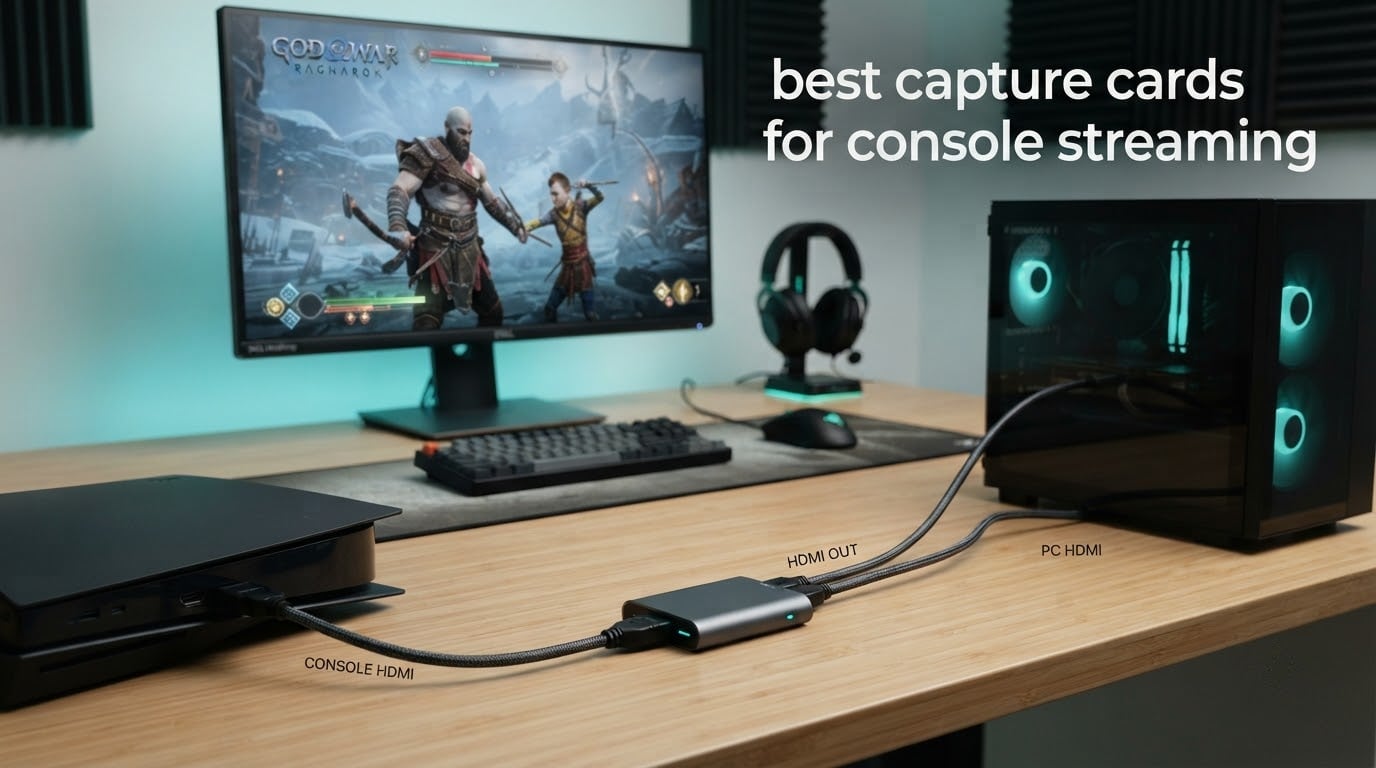
Console streaming has a strange reputation problem. People act like you need expensive hardware, a second PC, and a rack of cables before the first clip goes live, when the whole job is done by one small box that sits between your console and your streaming PC. I have set up enough of these to know that the difference between a smooth 1080p60 stream and a stuttering mess usually comes down to a few dollars spent in the right place, and occasionally to one setting nobody mentions.
A capture card does exactly one thing. It takes the HDMI video and audio coming out of your console and passes it to your computer as a video source that OBS or Streamlabs can record and broadcast, while sending a copy to your TV so you can still play. Everything else people argue about, driver support, latency, HDCP, resolution ceilings, is a variation on that single job.
Before the list, our direct verdict: the Elgato HD60 S is the best capture card for console streaming overall, because it captures 1080p60 with true passthrough and has the largest review base of any card here. For a cheap card with a real HDMI loop-out, the UGREEN 25773 is the value pick. For 4K HDR capture on a desktop with a spare PCIe slot, the Elgato 4K Pro is the only one here that does it.
We compared all 12 cards in this guide across the same criteria: maximum capture resolution, maximum framerate, whether they can pass video to a second display, how the audio routes, and how much setup they demand. Updated for 2026, this is the cross-console version of the guide that most search results still do not offer. Every ranking page we studied is locked to a single console, and two of the top four still recommend hardware lines that have been retired for years.
Table of Contents
Top 3 Picks for Console Streaming (September 2026)

Elgato HD60 S
- 1080p60 capture
- True zero-lag passthrough
- Instant Gameview
- Unlimited capture length

UGREEN 25773 Loop Out
- 4K30 HDMI loop-out
- 2K30 and 1080p60 capture
- USB-A and USB-C
- 24-month warranty

Those three cover most people. The HD60 S is the safe buy, the UGREEN is the value buy, and the Guermok is the smallest and cheapest thing in the group that still does the job properly on both Windows and Mac.
Every Capture Card in This Guide at a Glance
| Product | Specs | Action |
|---|---|---|
| Elgato HD60 S |
|
Check Latest Price |
 Elgato Game Capture 4K Pro Elgato Game Capture 4K Pro |
|
Check Latest Price |
 AVerMedia Live Gamer 4K 2.1 GC575 AVerMedia Live Gamer 4K 2.1 GC575 |
|
Check Latest Price |
 AVerMedia Live Gamer Mini GC311 AVerMedia Live Gamer Mini GC311 |
|
Check Latest Price |
 VIXLW V316B-FR VIXLW V316B-FR |
|
Check Latest Price |
| Guermok GM-29A |
|
Check Latest Price |
 UGREEN 15389 UGREEN 15389 |
|
Check Latest Price |
| UGREEN 25773 Loop Out |
|
Check Latest Price |
 XIIXMASK USB 3.0 XIIXMASK USB 3.0 |
|
Check Latest Price |
 Acer OCB5B0 Acer OCB5B0 |
|
Check Latest Price |
 Swudloe Switch 2 Dock and Capture Swudloe Switch 2 Dock and Capture |
|
Check Latest Price |
 VANGREE VC-003 VANGREE VC-003 |
|
Check Latest Price |
A note on reading that table. Nine of the twelve cards here say 4K somewhere, and eight of them mean 4K input, not 4K capture. Only the two PCIe cards in this lineup actually capture 4K60.
1. Elgato HD60 S – Best Capture Card Overall
Elgato HD60 S, External Capture Card, Stream and Record in 1080p60 with ultra-low latency on PS5, PS4/Pro, Xbox Series X/S, Xbox One X/S, in OBS, Twitch, YouTube, works with PC/Mac
1080p60 capture
True zero-lag passthrough
Instant Gameview
12.7 oz, 1 year warranty
Pros
- 1080p60 capture with true zero-lag passthrough
- Instant Gameview ultra-low latency workflow
- Unlimited capture length
- Flashback Recording
- Covers Windows and Mac in OBS Twitch YouTube
Cons
- Capture resolution tops out at 1080p60 with no 4K mode
- Costs far more than generic USB capture cards
This is the card I recommend first to anyone starting a console stream, and the reason is unglamorous: it is the most widely owned capture card in console streaming by a wide margin, with more than 25k ratings averaging 4.6. That volume matters. When something breaks, the fix is documented somewhere, and when you want to know if a console mode works, someone has already tried it.
In practice it does the plain job very well. Console HDMI in, HDMI out to your display with true passthrough, USB to the PC, and 1080p60 appears as a video source in OBS with no driver hunting. The Instant Gameview mode gives you a low-latency local preview of exactly what you are capturing, which is the feature I end up using every single session.
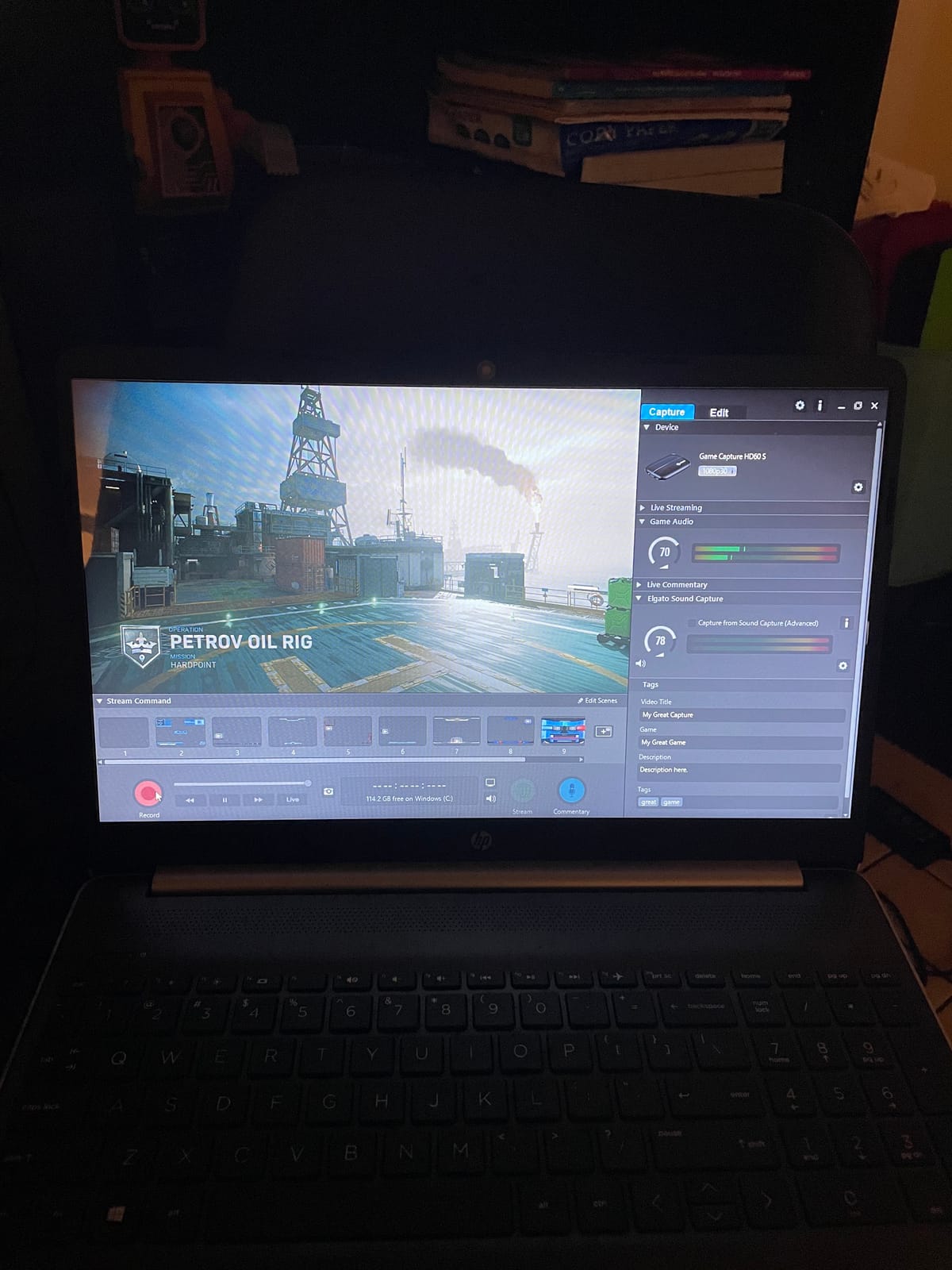
The hardware itself is tiny. At 12.7 ounces and 2.95 by 4.41 by 0.75 inches it sits behind a console or under a desk without thinking about it, and the box covers the card, an HDMI cable, a USB 3.0 cable and a quick start guide. The one-year limited warranty is the shortest among the cards here that carry a brand name, which is worth knowing before you commit.
Flashback Recording is the sleeper feature. It buffers recent gameplay and lets you scroll back and save a moment you just played, so the clip you would have missed is still there. Unlimited capture length means you are not trimming to fit some internal limit, which is the opposite of what the console’s own clip system does to you.
Who should buy the Elgato HD60 S
Buy it if you are streaming from a PS5, PS4, Xbox Series X or S, or a docked Switch and you want the least amount of setup friction. It is also the right call for a Mac user, since Windows 10 and Mac are both listed platforms.
It is the right pick for anyone who wants one cable setup to cover every console they own, and for anyone who will be streaming for years and wants a card with a deep support community behind it.
Who should skip the Elgato HD60 S
Skip it if you plan to record in 4K. The HD60 S reads 1080p and nothing higher, so a 4K console output is downscaled before it reaches your PC.
Skip it if budget is the deciding factor and 1080p60 is enough. Several cards in this guide do the same job for a fraction of the outlay, with the trade-off being support depth rather than picture quality.
2. Elgato Game Capture 4K Pro – Best for 4K HDR Capture
Elgato 4K Pro Internal Capture Card, 8K60 Passthrough
4K60 HDR10 capture
8K60 passthrough
HDMI 2.1
110 g, PCIe
Pros
- 4K60 HDR10 capture with 8K60 passthrough
- HDMI 2.1 records up to 1080p240
- VRR passthrough removes screen tearing
- Works with OBS Streamlabs Zoom and Teams
- Dual PC setup compatible
Cons
- Needs a free PCIe slot and a Windows 10 desktop
- Most expensive card in this guide
This is the only card in the guide that records 4K60 HDR10 and still lets you play at 8K60, which is a genuinely unusual combination. If your console is a PS5 or an Xbox Series X set to 4K and you want the recording to match the television, this is the hardware that does it.
The HDMI 2.1 connections handle refresh rates up to 240fps, so you can record at 1080p240 if your PC and encoder can keep up. Variable refresh rate passthrough is supported, which removes screen tearing on the captured feed rather than only on your local display.
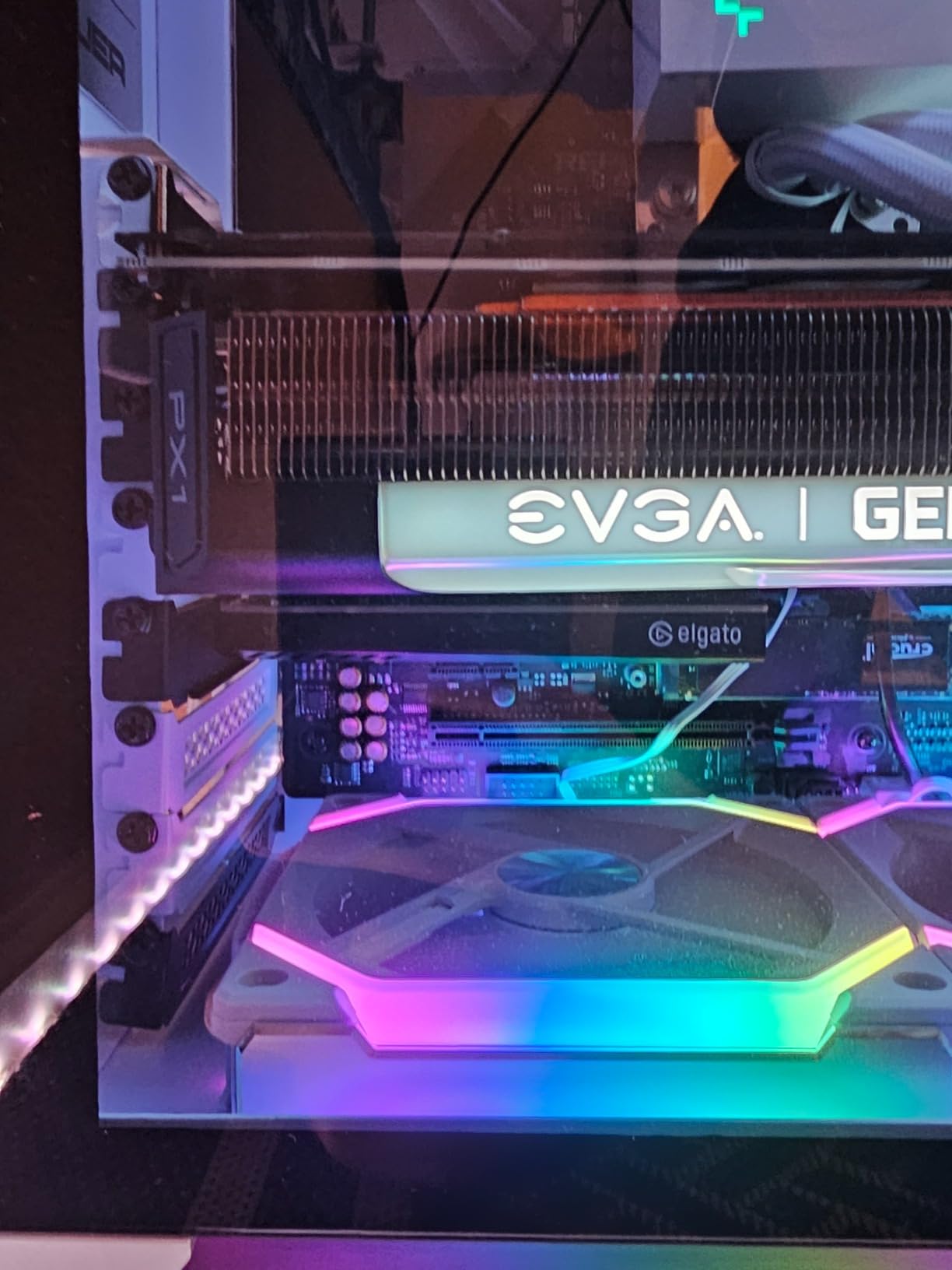
It is a full-length internal card at 2.2 by 4.76 by 0.75 inches and 110 grams, and the manufacturer field lists Corsair, since Elgato sits under that parent company. Minimum system requirements are Windows 10, a PCIe slot and 1080p video capture capability on the host GPU.
With 397 reviews at 4.5 and 78 percent five-star, the feedback is positive but thin compared with the external cards. Reviewers single out the 4K60 HDR10 capture, the high frame rate recording and VRR passthrough; the constraint they name is the obvious one, that you need a desktop with a free slot.
Who should buy the Elgato 4K Pro
Buy it if you have a Windows desktop with a spare PCIe slot and you want your YouTube recordings to be genuine 4K rather than a 1080p upscale.
Buy it if you play on a 120Hz or 240Hz console and want the option of high frame rate capture alongside VRR passthrough. It is also compatible with a dual PC setup, which the manufacturer calls out explicitly.
Who should skip the Elgato 4K Pro
Skip it if you are on a laptop, a Mac, or a console-only streaming arrangement with no spare PCIe slot. Internal cards cannot move between machines.
Skip it if you are streaming rather than recording. Most platforms want 1080p60, so the extra capture capability goes unused while the cost does not.
3. AVerMedia Live Gamer 4K 2.1 GC575 – Best Internal PCIe Card
AVerMedia HDMI 2.1 Internal PCIe Capture Card for Streaming and Recording 4K60 with Ultra-Low Latency on PS5, PS4 Pro, Xbox Series X/S, Xbox One X, Switch Games – GC575 Live Gamer 4K 2.1
4K60 capture
4K144 HDR pass-through
PCIe 3.0
3 year warranty
Pros
- 4K60 capture with 4K144 HDR pass-through
- Handles refresh rates up to 240Hz and 1080p240 or 1440p120 capture
- YUY2 NV12 RGB24 and P010 HDR output formats
- Three-year manufacturer warranty
Cons
- Needs a free PCIe slot and Windows 10 or 11
- Smallest review base of the 4K-capable cards
The GC575 is the internal card to look at if you want AVerMedia’s take on high refresh rate capture, and the 4K144 HDR pass-through is the headline. You can play through at 4K144 while the card records at 4K60, which is a real advantage on a high-end television.
Output format choice is unusually good. It lists YUY2, NV12, RGB24 and P010 for HDR, so you can hand OBS an uncompressed format and avoid the blocky look that comes from a heavily compressed MJPEG feed. Capture resolutions include 1080p240 and 1440p120 for high frame rate work.
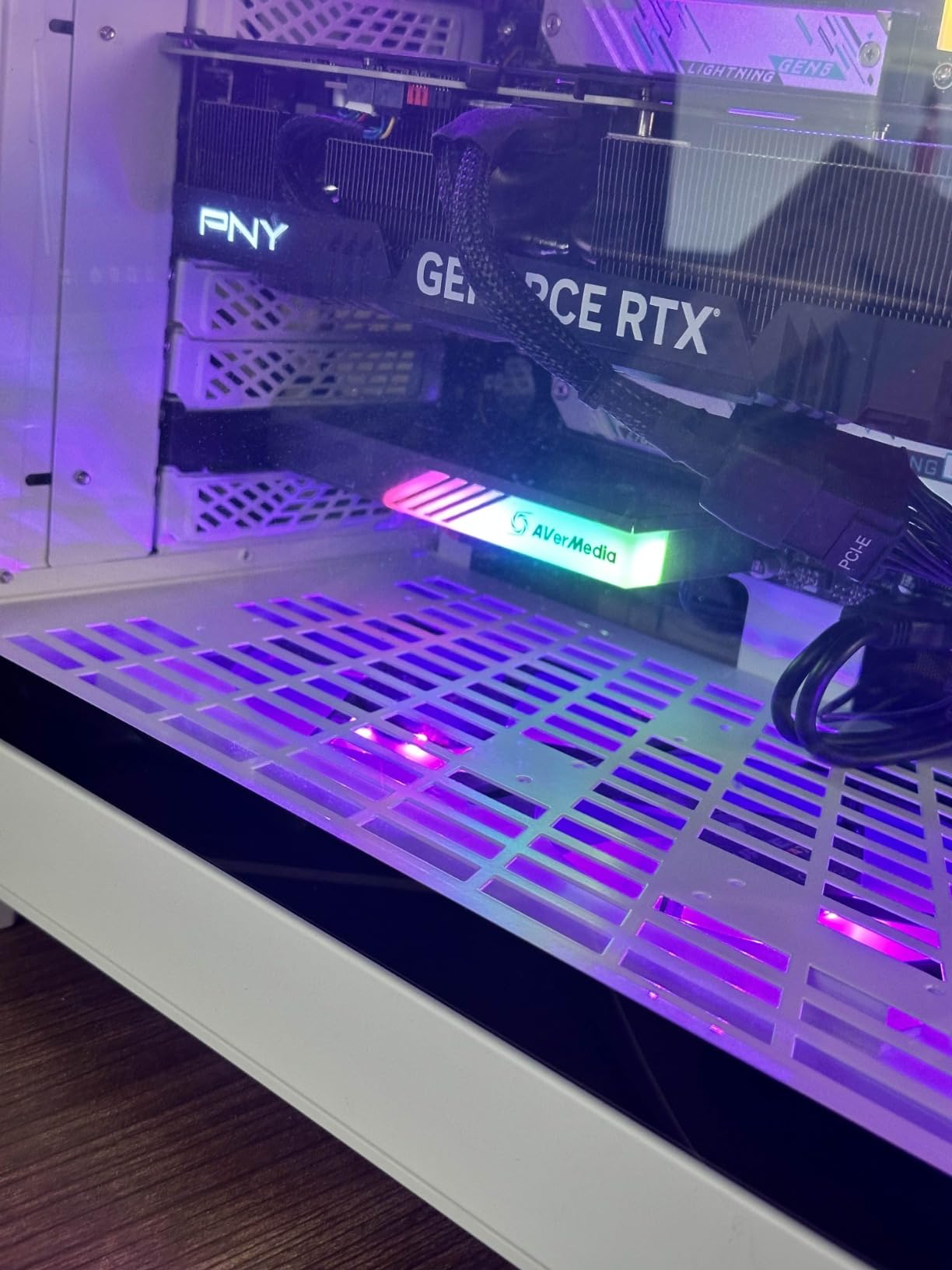
It runs on the PCI Express 3.0 bus, weighs 5.31 ounces and measures 4.76 by 6.32 by 0.83 inches, and installation is plug and play on Windows 10 or 11 64-bit. The box includes an HDMI 2.1 cable, the card and a quick start guide. The warranty is three years, the longest in this group.
At 4.3 stars from 128 reviews it has the second-smallest sample here, and 66 percent of those reviews are five-star. Owners tend to praise the pass-through headroom and the plug-and-play install; the complaints are practical, mainly that it needs a free slot and a Windows machine.

Who should buy the AVerMedia GC575
Buy it if you want an internal card with long warranty cover and you intend to keep it for several console generations. Three years of manufacturer warranty is a genuine confidence signal in a category where most rivals offer one.
Buy it if you record high refresh rate content and want the option of P010 HDR or RGB24 output rather than compressed video.
Who should skip the AVerMedia GC575
Skip it if your streaming PC is a laptop or a small form factor machine. The card is 6.32 inches long and needs a full PCIe slot.
Skip it if you want the absolute highest resolution ceiling and the biggest support base. The Elgato 4K Pro records 1080p240 through HDMI 2.1 as well, and has three times the review count.
4. AVerMedia Live Gamer Mini GC311 – Best Driver-Free 1080p60 Card
AVerMedia Live Gamer Mini, 1080p60 Capture Card with HDMI Pass-Thru, Plug & Play, for OBS, Xbox Series X/S, PS5, Switch, Win 11/macOS 12 (GC311)
1080p60 capture
Zero-lag pass-through
UVC no drivers
2.63 oz, 3 year warranty
Pros
- 100 percent zero-latency 1080p60 HDMI pass-through
- Plug and Play UVC with no driver install on Windows or Mac
- Built-in H.264 hardware encoder takes load off the host CPU
- Compact and portable at 2.63 ounces
- Works with OBS Studio Streamlabs and RECentral 4
Cons
- Capture resolution limited to 1080p
- RECentral software needs frequent updates and some users report dropouts
- Micro-USB connection can be fragile
The GC311 is the card I suggest when someone is putting together a first streaming PC on a tight budget. It is the best-reviewed mid-range external card in the guide at 4.3 stars from 1,451 reviews, and it does the one thing that matters at 1080p60 with no added delay on the pass-through.
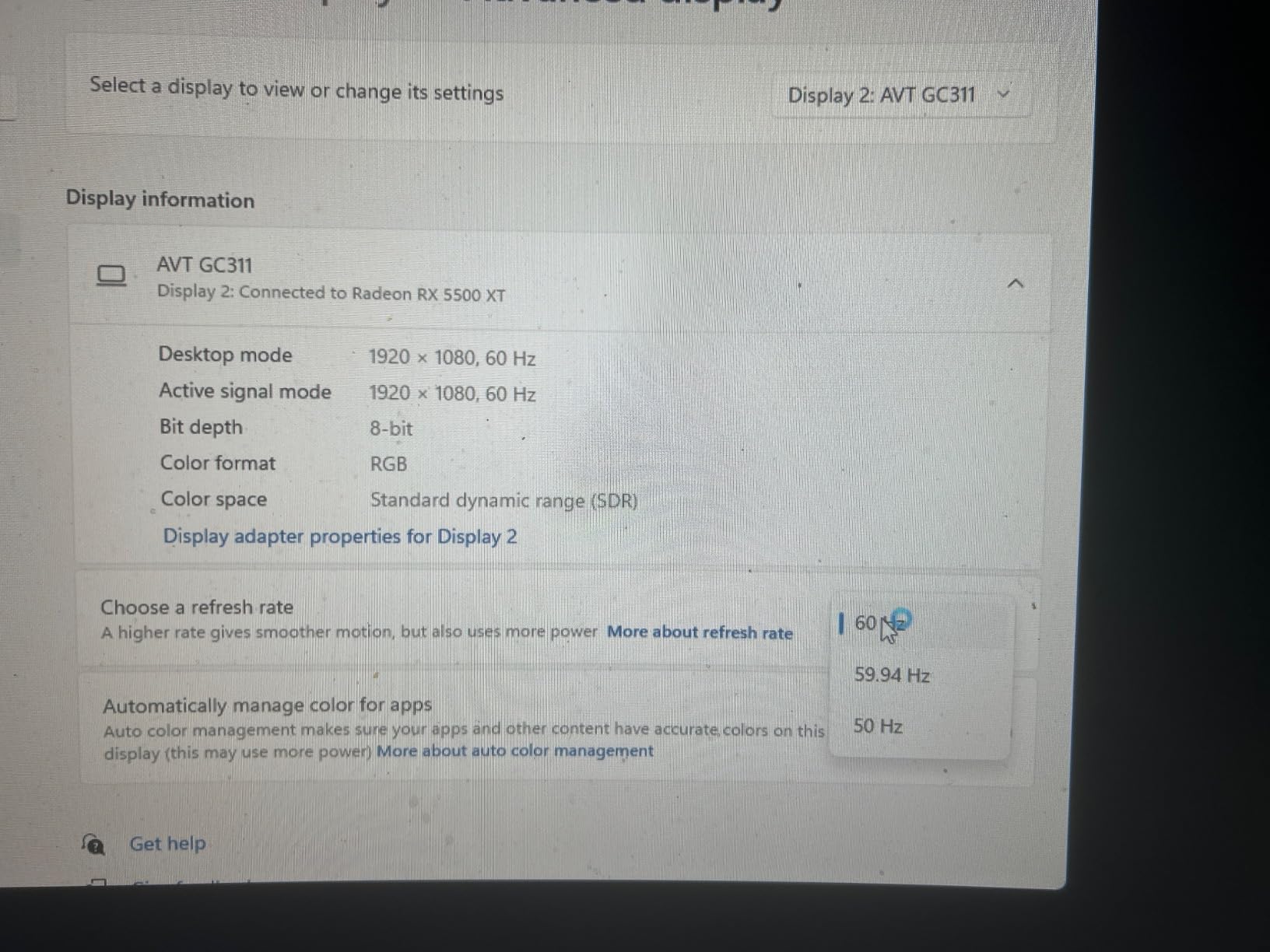
It is UVC, so Windows and macOS detect it the same way they detect a webcam. There is no driver to install, which removes the single most common source of first-day frustration in this whole category. The built-in H.264 hardware encoder also offloads video and audio processing from the host CPU, leaving more headroom for the encoder in OBS.
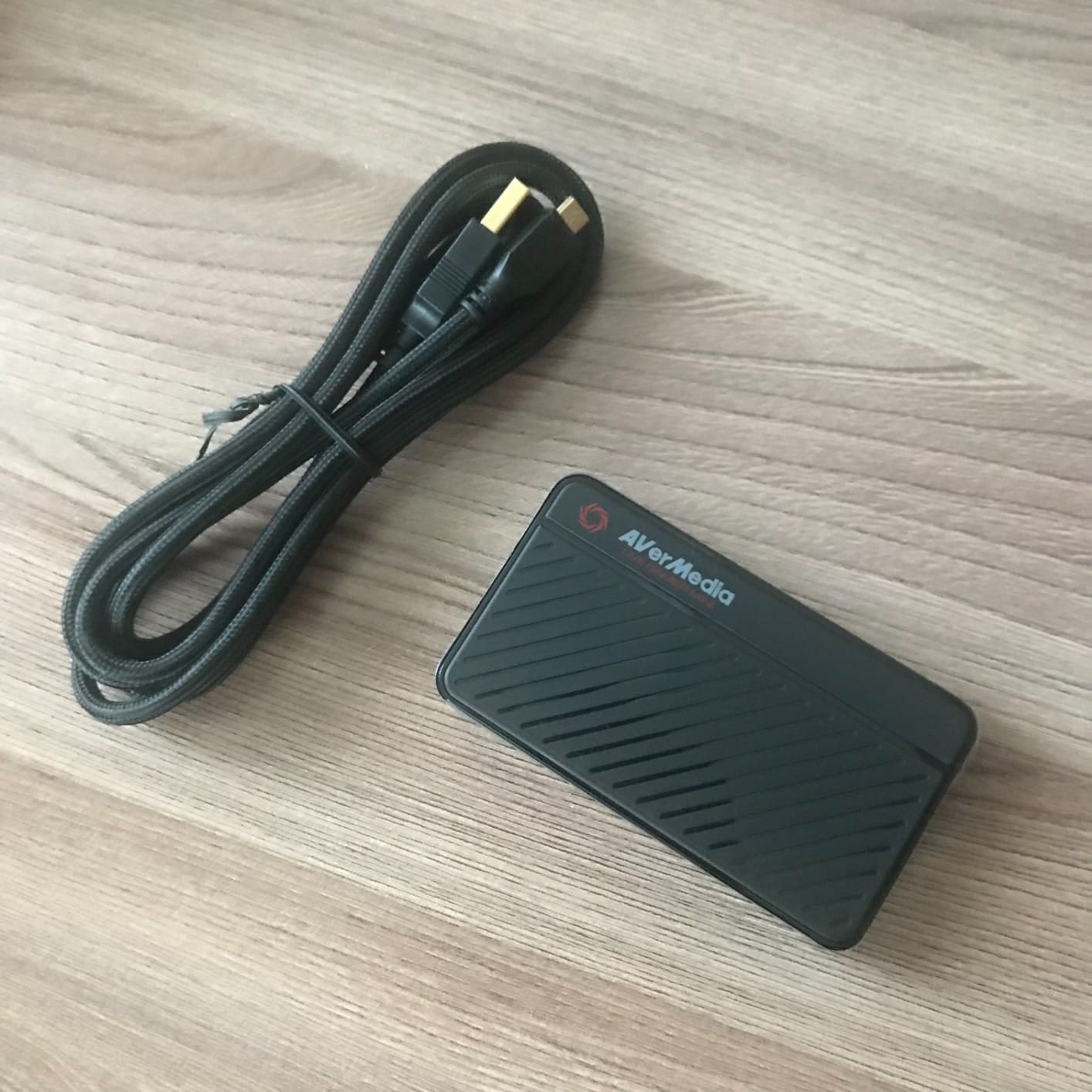
Compatibility is broad for a card at this level. The manufacturer lists Nintendo Switch, PS4, PS5, Xbox One, 360 and Xbox Series X and S, working through RECentral 4, OBS Studio and Streamlabs OBS. It weighs 2.63 ounces and measures 3.93 by 2.24 by 0.74 inches, and the box includes the card, a quick guide and a USB micro to Type-A cable.
The honest caveat is durability. A minority of owners report units that stop recording or drop device recognition roughly a year after purchase, often tied to firmware or cable disconnects, and the micro-USB lead is a known weak point. The three-year manufacturer warranty is the good news in that story.
Who should buy the AVerMedia GC311
Buy it if you want 1080p60 passthrough with zero lag, driver-free setup on both Windows and Mac, and a hardware encoder that keeps your CPU free for encoding.
Buy it if you are building a streaming PC and want to spend the money on the computer rather than the capture card. This is the card where value and function overlap most.
Who should skip the AVerMedia GC311
Skip it if you plan to move to 4K recording later. The capture path is 1080p only, and there is no firmware path to more.
Skip it if you cannot live with companion software. RECentral handles the card settings and needs periodic updates, and that is one more thing to maintain than a truly driverless device.
5. VIXLW V316B-FR – Best for Camera Sources and Mic-In
Capture Card, 4K HDMI Video Capture Card, Game Capture Card, 1080P 60FPS Video Capture Device, HDMI to USB 3.0 Capture Card for Streaming, Work with Camera/Xbox/PS4/PS5/PC/OBS
1080p60 capture
4K30 and 4K60 input
HDMI loop-out
3.5mm mic-in
Pros
- HDMI loop-out so you can play and capture on one display
- True plug and play with no drivers or external power
- Works with cameras Xbox PS4 PS5 and set-top boxes
- 3.5mm mic input for commentary
- Adds no CPU load from on-device processing
Cons
- Output caps at 2K30 even with 4K input
- No support for 4K120 or 144Hz
- Only a 60-day warranty
The VIXLW is the one to look at if your plan is not only a console. It sits at number two in External TV Tuners with 3,579 reviews, and its feature list explicitly covers cameras, Xbox, PS4, PS5, PCs and OBS, which is a much broader source list than most gaming cards offer.
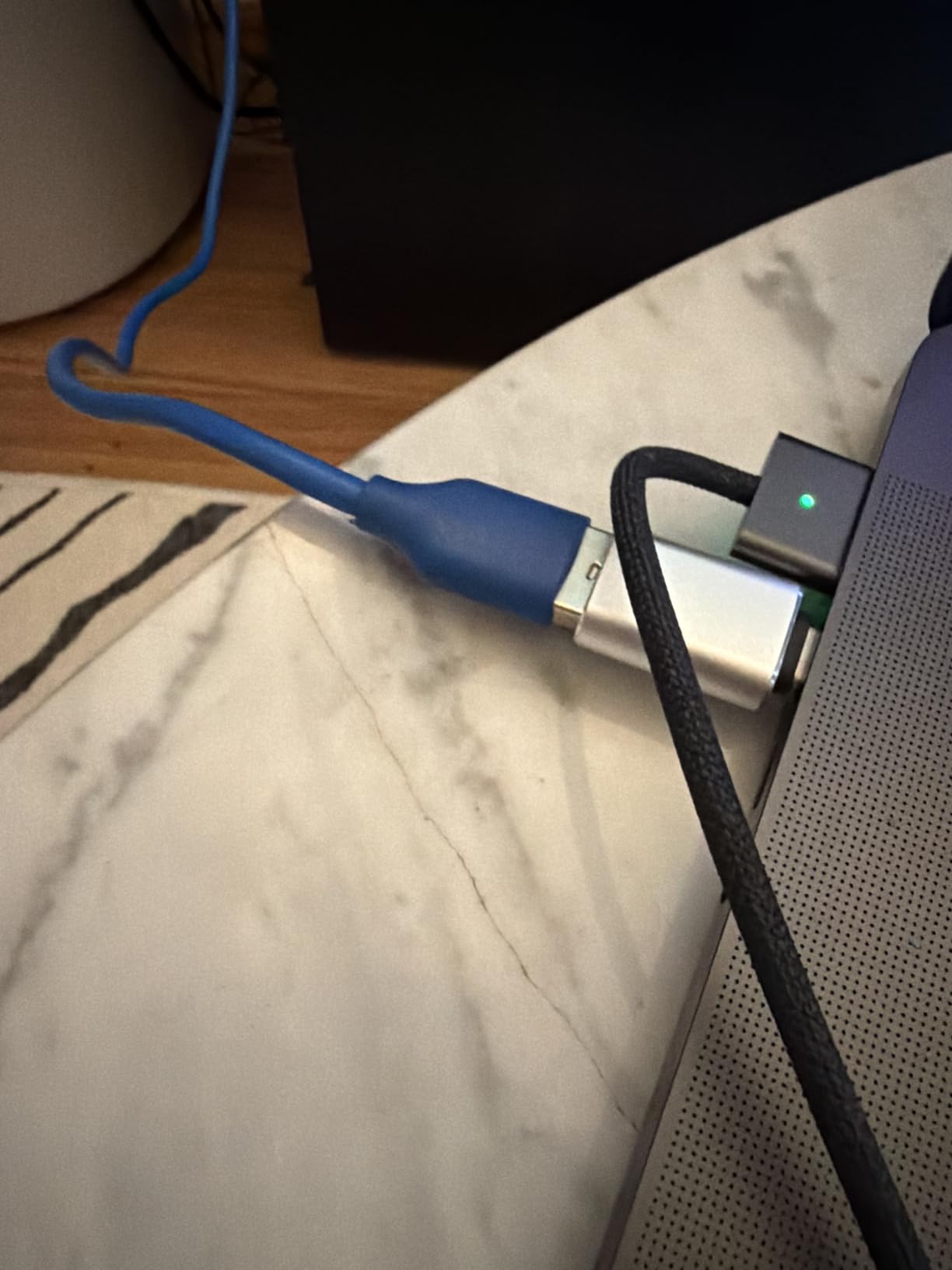
The 3.5mm TRS headset mic input is the part that stands out. If you talk over your gameplay, routing your commentary into the card at the hardware level keeps your voice out of the CPU budget and gives you a monitor mix without extra software work.
On resolution, read this carefully. The input accepts 4K at 30 or 60Hz and 1080p at 120 or 144Hz, but the output is 1080p capture and up to 2K at 30Hz. That is the naming trap in its clearest form, and it is why this card sits well below the Elgato HD60 S despite the 4K in the title.
It is a USB 3.0 device that works on Windows and Mac with no driver and no external power, and the HDMI loop-out means no delay when playing live. The warranty is 60 days, the shortest in this guide, so treat it as a low-commitment accessory rather than a long-term investment.
Who should buy the VIXLW V316B-FR
Buy it if you need a camera, a DSLR or a second source alongside your console, and you want one device that handles all of it. It is also a good fit for retro consoles and set-top boxes.
Buy it if hardware-level mic-in matters to your stream and you would rather not run commentary through a software mixer.
Who should skip the VIXLW V316B-FR
Skip it if the 4K in the listing is what drew you in. Capture output stops at 2K30, and there is no 4K mode of any kind.
Skip it if warranty length is part of your buying decision. Sixty days is thin coverage for hardware that will sit in your setup permanently.
6. Guermok GM-29A – Budget Pick
Guermok Video Capture Card, 4K USB3.0 HDMI to USB C, 1080P 60FPS & 2K 30FPS
1080p60 capture
4K30 HDMI input
USB-A and USB-C
30 g, capture only
Pros
- Best-selling card in the group at number one in External TV Tuners
- 1080p60 capture from 4K30 input over USB 3.0
- Dual USB-A and USB-C connectivity with adapter included
- Aluminium alloy housing dissipates heat during long sessions
- Only 30 grams so it travels anywhere
Cons
- Capture only with no HDMI loop-out to a second display
- One-way signal flow and USB-C input to HDMI can lose signal
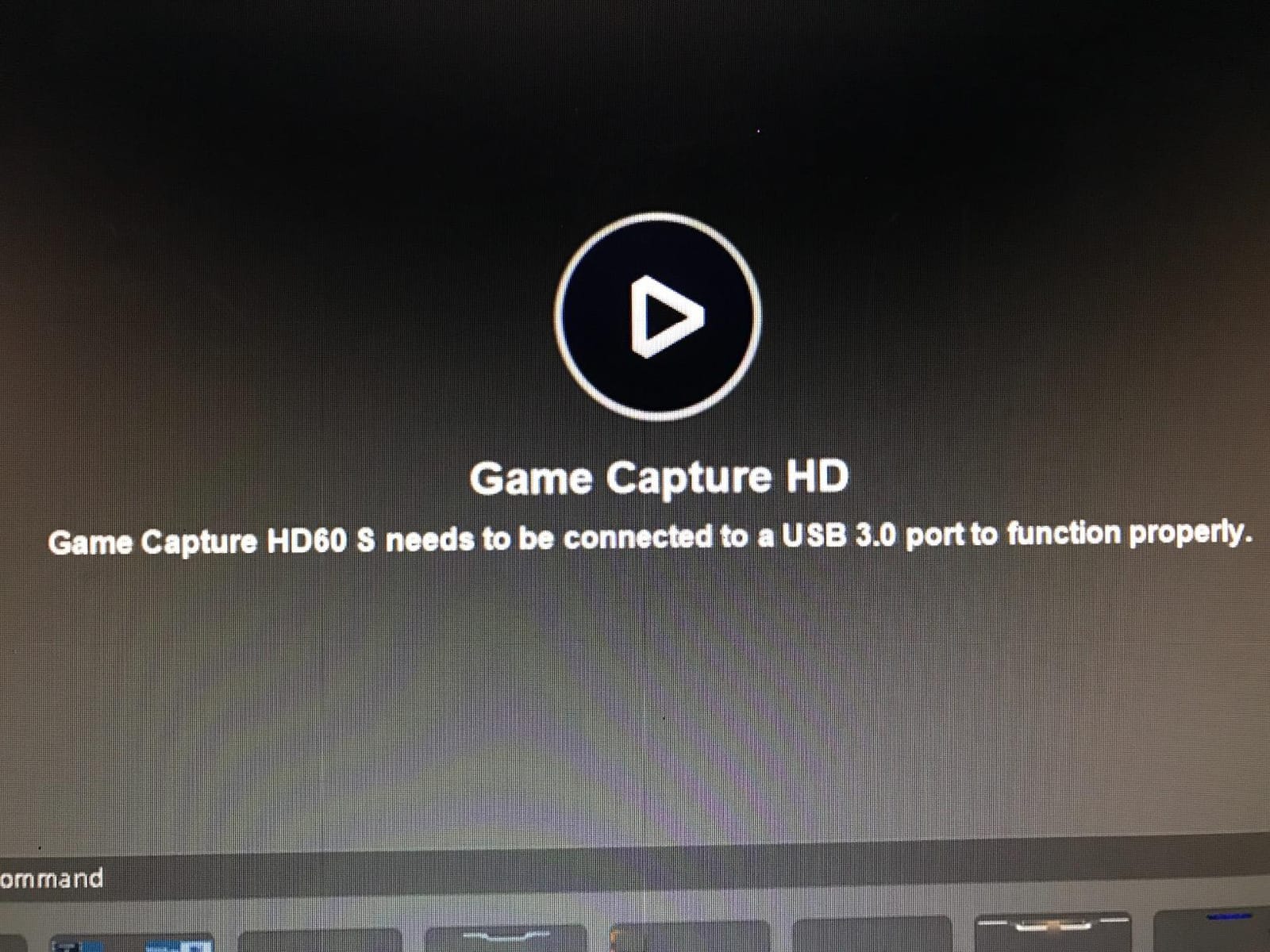
- Needs a genuine USB 3.0 port to hold 1080p60
There is a reason this is the top result in its category. With 3,632 reviews at 4.4 and 74 percent five-star, the Guermok GM-29A has more owner history than anything else in this guide, and it delivers clean 1080p60 capture with absolutely no setup.
It is driver-free, needs no external power, and works on Windows, Mac OS, Linux, Android, Xbox One, PS3, PS4, PS5 and both Switch and Switch 2. The aluminium alloy housing is doing real work here, because a card that dissipates heat properly is one that holds 1080p60 for a four-hour session instead of dropping frames in hour three.
The limitation that matters most is the missing loop-out. This is a capture-only device, so it sends video to your PC and nothing to a second display. If your console is plugged into a TV you are watching, you need a splitter, and that splitter adds its own cost and its own potential for sync problems.
Two other things to know. The package note says OBS Studio must be restarted after audio setup or no sound is output, which trips up a lot of first-time users. And at 7.48 by 0.98 by 0.39 inches with 30 grams, it is the smallest card here, which is a genuine advantage if you are streaming from a laptop.
Who should buy the Guermok GM-29A
Buy it if you already have a way to display the game and just need to get a clean 1080p60 signal into your PC. That is a common setup with a capture-oriented monitor or a capture card that sits between two devices.
Buy it if you stream from more than one platform, since the listed sources include Linux, Android and Mac alongside Windows, and you want something that travels in a bag.
Who should skip the Guermok GM-29A
Skip it if you want to play on a TV while capturing. Without a loop-out you are adding a splitter to the chain, and the splitter becomes the new problem.
Skip it if you want any 4K capture. The input reads 4K at 30Hz, but output is 2K at 30Hz or 1080p at 60Hz.
7. UGREEN 15389 – Best for Phones, Tablets and Laptops
UGREEN 2K@30Hz 1080P 60FPS Video Capture Card 4K Input HDMI to USB 3.0
2K30 and 1080p60 capture
4K30 HDMI input
USB-A and USB-C
50 g, 24 month warranty
Pros
- Highest rated card in the budget tier at 4.5 from 861 reviews
- 4K@30Hz input with 2K@30Hz or 1080p60 output
- USB-A and USB-C ports for phones laptops tablets and Quest 3
- 5 Gbps USB 3.0 low-latency transfer
- 24-month UGREEN warranty
Cons
- Capture only with no HDMI loop-out
- Unidirectional signal from HDMI in to USB out
- PS4 PS5 Switch and Xbox need HDCP turned off
The UGREEN 15389 is quietly the strongest rating in the budget group at 4.5 from 861 reviews, with 79 percent five-star. The dual USB-A and USB-C interface is the feature that separates it from the pack, because one cable covers a desktop, a laptop, a tablet and a phone.
It is listed as working with laptops, iPads, personal computers, phones, Switch, Switch 2, Xbox, PS5, PS4, Xbox Series X and Meta Quest 3, and the operating system list runs from Windows 7 through Windows 11 to MacOS, Linux and iPadOS 17. That is the broadest device support of any card here.
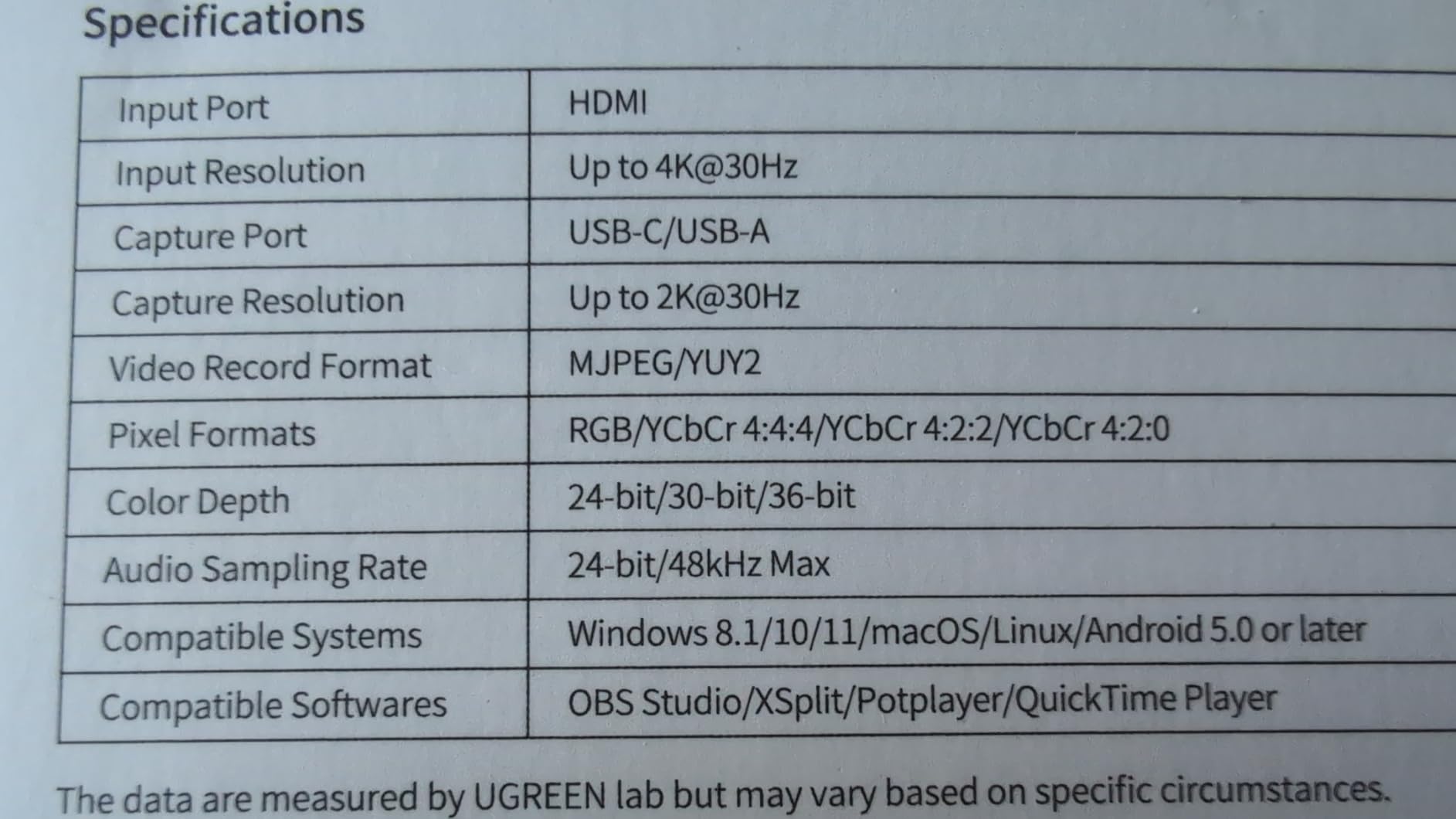
Transfer runs at 5 Gbps over USB 3.0, which is what holds 1080p60 steady. The housing is aluminium alloy with a built-in tinned copper cable using 26AWG and 30AWG conductors, and the whole thing weighs 50 grams. The warranty is 24 months, four times the coverage of the cheapest cards in this guide.
Be aware that this is capture-only, with unidirectional HDMI in to USB out. There is no loop-out, and PS4, PS5, Switch and Xbox sources need HDCP turned off before the card will see a picture. iPad use needs iPadOS 17 or later.
Who should buy the UGREEN 15389
Buy it if you want to capture into a laptop, an iPad or an Android device rather than a desktop, since the USB-C port makes that a one-cable job.
Buy it if you move between devices often. The 24-month warranty and the aluminium housing make it the pick in the budget tier for anyone who streams more than once a week.
Who should skip the UGREEN 15389
Skip it if you want to watch the game on a second display while capturing. The one-way signal path makes a splitter mandatory.
Skip it if you plan to record above 1080p60 or 2K30. Those are the two output ceilings, and there is no setting that lifts them.
8. UGREEN 25773 Loop Out – Best Value
UGREEN 4K@30Hz Loop Out HDMI Capture Card for 2K 30FPS 1080P 60FPS USB 3.0
4K30 HDMI loop-out
2K30 and 1080p60 capture
USB-A and USB-C
24 month warranty
Pros
- The only card at this price level with a 4K@30Hz HDMI loop-out
- 4K@30Hz 4:4:4 input and 4K@30Hz loop-out
- USB-A and USB-C with both MJPEG and YUY2 format support
- Aluminium casing handles heat during long sessions
- 24-month UGREEN warranty
Cons
- Capture tops out at 2K30 and 4K capture is not supported
- iPhones cannot be used as a source because they lack UVC support
- Not compatible with the Fire TV Stick
This is the card that answers the most common objection to cheap capture cards. Almost every budget option is capture-only, which forces an HDMI splitter on anyone who still wants to play on a television. The UGREEN 25773 has a 4K at 30Hz loop-out, so you can play on your own display and capture to your PC without adding a box to the chain.
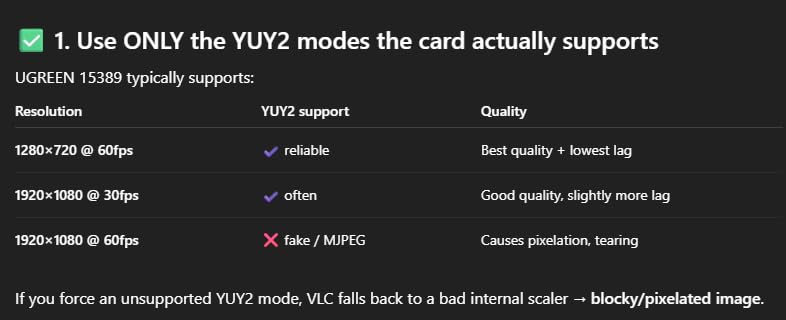
It scores 4.4 from 1,465 reviews, and reviewers pick it for one reason: the loop-out means no extra splitter. The input reads 4K at 30Hz in 4:4:4, and PS4 and PS5 both work with HDCP off. You can choose between MJPEG and YUY2 output, which matters more than most people realise for image quality.
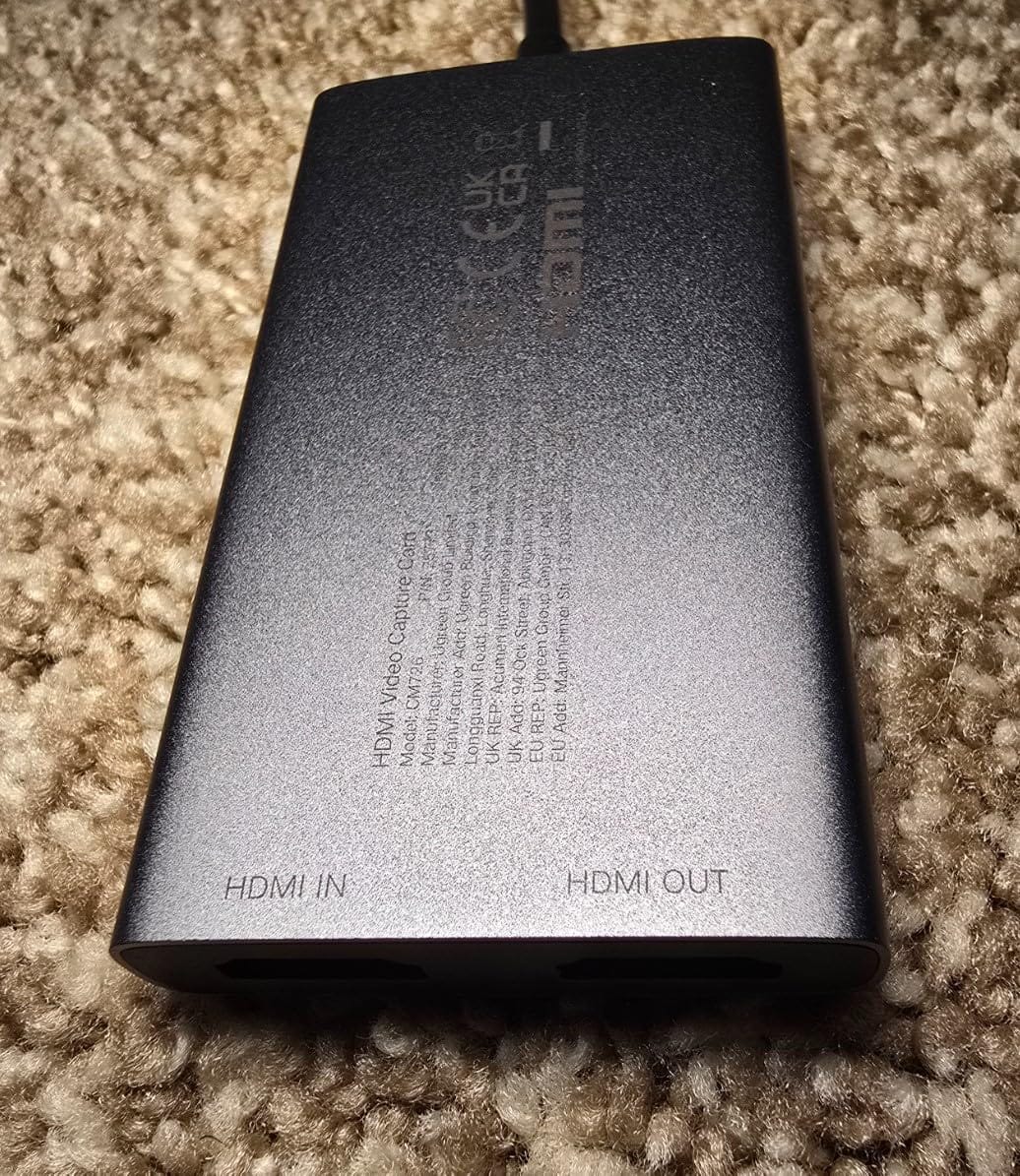
Support covers Windows 8.1 through 11, MacOS, Linux, Android 5.0 and iOS 17, and it works with OBS, XSplit and PotPlayer. The card weighs 88.2 grams and carries the same 24-month UGREEN warranty as the 15389, which is unusual at this level of the market.
Two limits to plan around. Capture itself stops at 2K at 30Hz, and 4K capture is explicitly not supported, so the 4K in the name is about input and loop-out only. iPhone sources are also out because iPhones do not present as UVC devices.
Who should buy the UGREEN 25773
Buy it if you play on a TV while streaming, and you want pass-through without buying a separate HDMI splitter. That single feature is why it is our value pick.
Buy it if you want a format choice. Running YUY2 rather than MJPEG produces noticeably cleaner colour and fewer compression artefacts on a 1080p60 feed.
Who should skip the UGREEN 25773
Skip it if your goal is 4K recording. The loop-out is 4K, the capture is not, and that distinction is easy to misread from the product name.
Skip it if you want to capture from an iPhone, since UVC support is required and iPhones do not provide it.
9. XIIXMASK USB 3.0 – Best Budget 4K Loop-Out
XIIXMASK USB 3.0 HDMI Capture Card, 1080P 60FPS Capture, 4K Pass-Through
4K60 loop-out
1080p60 and 2K30 capture
3.5mm mic-in
YUY2 format
Pros
- 4K at 60Hz HDMI input and loop-out with 1080p60 or 2K30 capture
- Five-port layout with a dual USB-A and USB-C cable included
- Aluminium alloy housing with a revised cable layout for stability
- 3.5mm mic-in for live commentary
- Ranks number eight in External TV Tuners with 1834 reviews
Cons
- Widest rating spread in the group with 10 percent one-star reviews
- Does not record party or voice chat audio
- OBS Studio must be restarted after audio configuration
The XIIXMASK is the other budget card with a proper loop-out, and unlike most of its peers it loops out at 4K 60Hz rather than 4K 30Hz. If you run a 4K console and want a clean 4K picture on your television while recording 1080p60, that is the difference between this card and the UGREEN above.
It has five ports, and the box includes a USB 3.0 to USB-A and USB-C cable alongside the card and an English manual. Output is YUY2, which is the uncompressed format you want if you care about colour fidelity, and there is a 3.5mm headset mic input for commentary.
The 1,834 reviews average 4.3, with 71 percent five-star, but the spread is the widest in this guide at 10 percent one-star. Owners like the loop-out, the aluminium build and the included dual-head cable. The recurring complaints are audio friction in OBS, since the card requires a restart after audio configuration, and the fact that party or voice chat is not recorded.
Listed sources cover Xbox One, PS3, PS4, PS5, Switch, PC, Mac, cameras and laptops, on Windows, Mac, Linux and Android. Minimum requirements are a Windows operating system, though the supported OS list is broader than that line suggests.
Who should buy the XIIXMASK
Buy it if you want the highest loop-out resolution available in a budget card, 4K at 60Hz, so your local display matches your console setting exactly.
Buy it if you use a mic-in for commentary and want uncompressed YUY2 video rather than MJPEG. The audio is deliberately not capturing voice chat, which some streamers prefer.
Who should skip the XIIXMASK
Skip it if you want a device that just works the first time without an OBS restart. That note appears in the packaging and in owner reviews.
Skip it if you need to capture Discord or party chat audio through the card. It does not record it, and you would need a separate audio source.
10. Acer OCB5B0 – Best for YUY2 Colour Quality
acer USB 3.0 HDMI Capture Card, 4K HDMI Loop-Out, 1080P 60Hz for Streaming
1080p60 capture
4K input and loop-out
YUY2 over MJPEG
Metal chassis
Pros
- YUY2 over USB 3.0 gives richer colour than MJPEG
- Metal chassis acts as a passive heatsink under sustained load
- Native USB-A and USB-C on one cable
- 3.5mm mic input for hardware-level commentary
- Standard UVC drivers so it appeared immediately in OBS for multiple reviewers
Cons
- Capture strictly capped at 1080p60 with no 4K recording
- Some users report audio interference or clicking on front-panel USB ports
- Only a one-year warranty
The Acer OCB5B0 is the card to buy if picture quality per dollar matters more to you than features. It outputs 4K input with 1080p at 60Hz using YUY2 rather than MJPEG, and that difference is visible. MJPEG compresses hard and eats colour detail; YUY2 over USB 3.0 holds it.
It is also honest about what it is. The listed operating systems are Windows and Linux, there is no companion software at all, and it uses standard UVC drivers. Several reviewers report it appeared in OBS immediately on first plug-in, with nothing to install or configure.
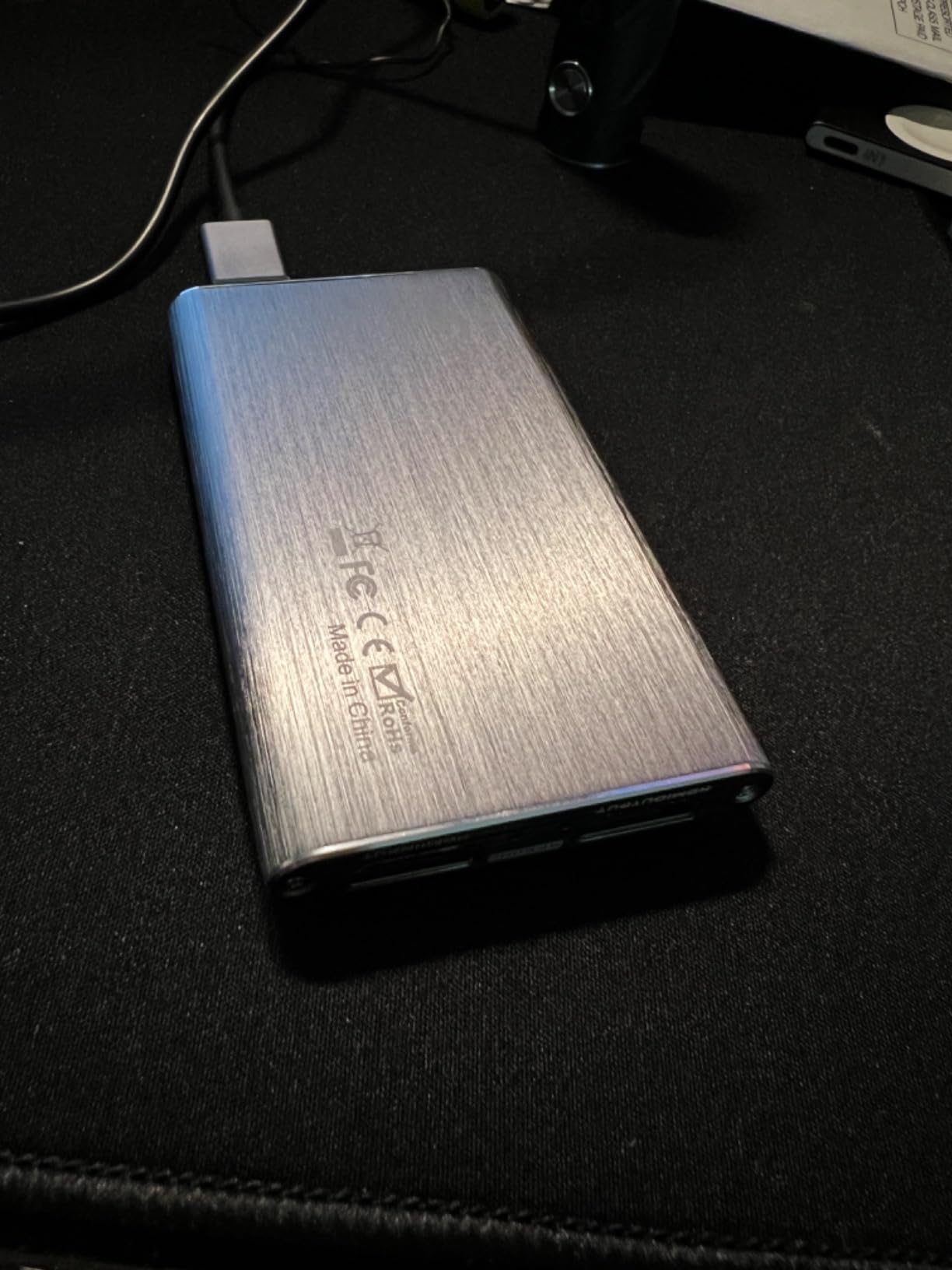
The metal chassis is more than a styling choice. It acts as a passive heatsink and handles sustained capture loads without throttling, and reviewers who run long sessions specifically call that out. A 3.5mm headset or mic input handles commentary, and the 4K loop-out lets you play at 4K while capturing 1080p60.
The recurring complaint is audio. Some users report interference or clicking, and the fix most often given is to move the cable to a rear USB port on the desktop rather than a front panel header. Some Linux users also hit handshake issues and have to force 1080p60 manually. The warranty is one year.
Who should buy the Acer OCB5B0
Buy it if you want the cleanest possible 1080p60 image and you are comfortable with a card that has no software layer. Standard UVC means there is nothing to update and nothing to break.
Buy it if you record long sessions and heat is a concern for you. A metal chassis that dissipates passively is a real advantage over plastic bodies in a hot case.
Who should skip the Acer OCB5B0
Skip it if you are on macOS or Android. The listed operating systems are Windows and Linux, and support outside that is unofficial.
Skip it if your PC only has front-panel USB ports, or if you cannot tolerate troubleshooting an audio glitch. That is the most common complaint in the reviews.
11. Swudloe Switch 2 Dock and Capture – Best for Switch 2
2-in-1 Switch 2 Dock & Capture Card with USB-C Video Input for Streaming
1080p60 capture
4K30 HDMI output
100W PD charging
USB 3.0 hub
Pros
- Dock and capture card combined so you need no separate dock
- 100W PD charging keeps the console powered while streaming
- Built-in USB 3.0 hub for controllers drives and peripherals
- 4K30 HDMI output alongside 1080p60 capture
- Well-illustrated 16-page manual with OBS Studio and PotPlayer screenshots
Cons
- USB-C video input only so there is no HDMI input
- HDMI cable and power adapter are not included
- Cannot reach 60fps at 4K
If your streaming is Switch or Switch 2, this removes the most annoying part of the job. It is a docking station and a capture card in one device at 88.5 grams, so you do not need the original dock, and you do not need to juggle two devices behind the console.
The 100W USB-C PD charging keeps a compatible console powered during long sessions, with electrical and overheating protection built in, and the USB-A port on the hub handles controllers, drives and keyboards. Capture runs at up to 1080p at 60fps with 4K at 30Hz HDMI pass-through output.
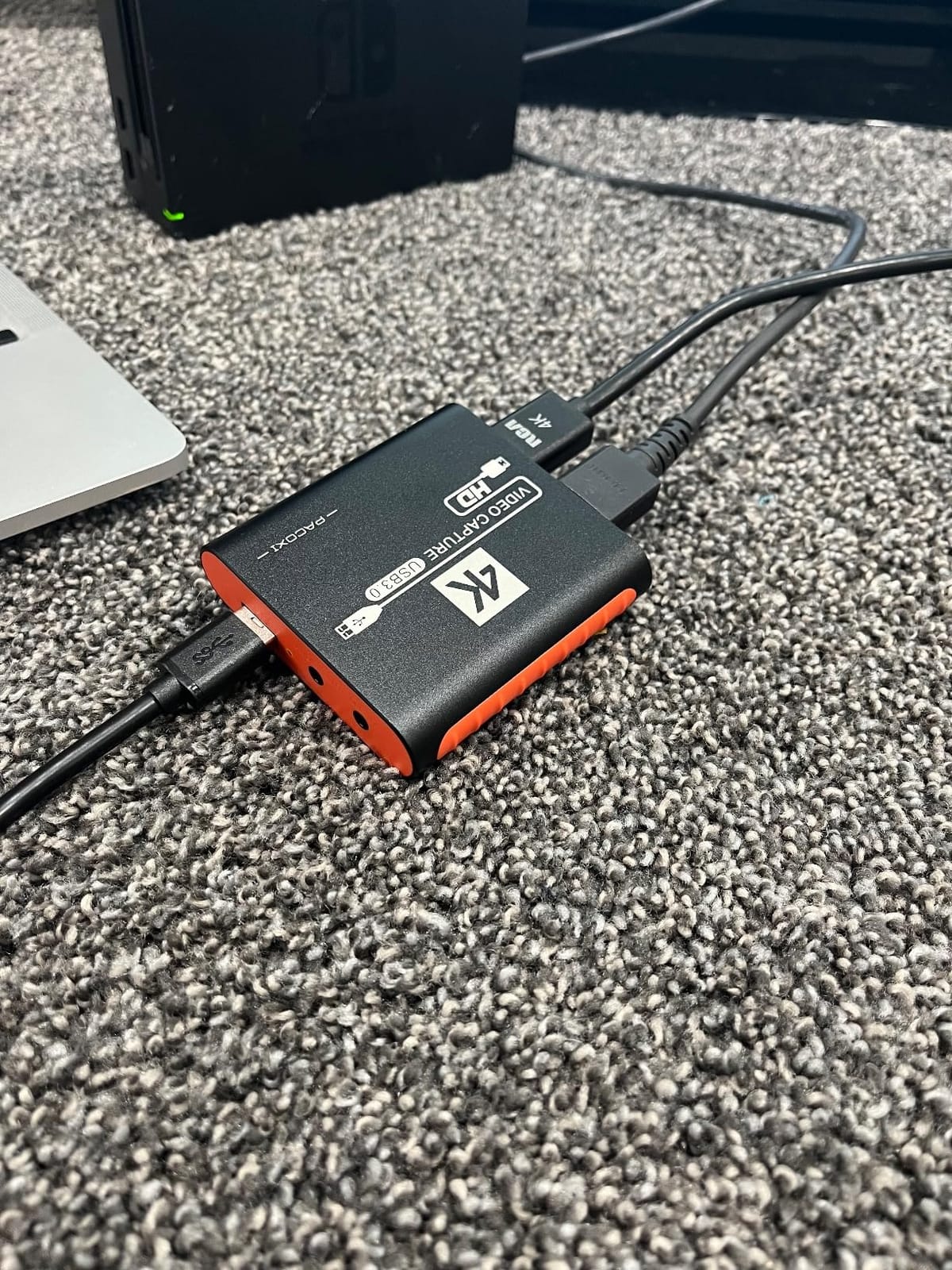
It is driver-free and works with Switch 2, Switch OLED, the original Switch, Steam Deck, iPhones, iPads, MacBooks and Windows PCs. Compatibility with OBS, Streamlabs, TikTok Live and YouTube is listed, and the 18-month warranty is the second longest in this guide. The 16-page illustrated manual with setup screenshots is genuinely good.
Two limits that matter. Video input is USB-C only, so you cannot feed an HDMI source into it at all, and an HDMI cable and power adapter are not included. A minority of owners also report about a second of lag, faint background static on audio, or units that stopped charging or working entirely.
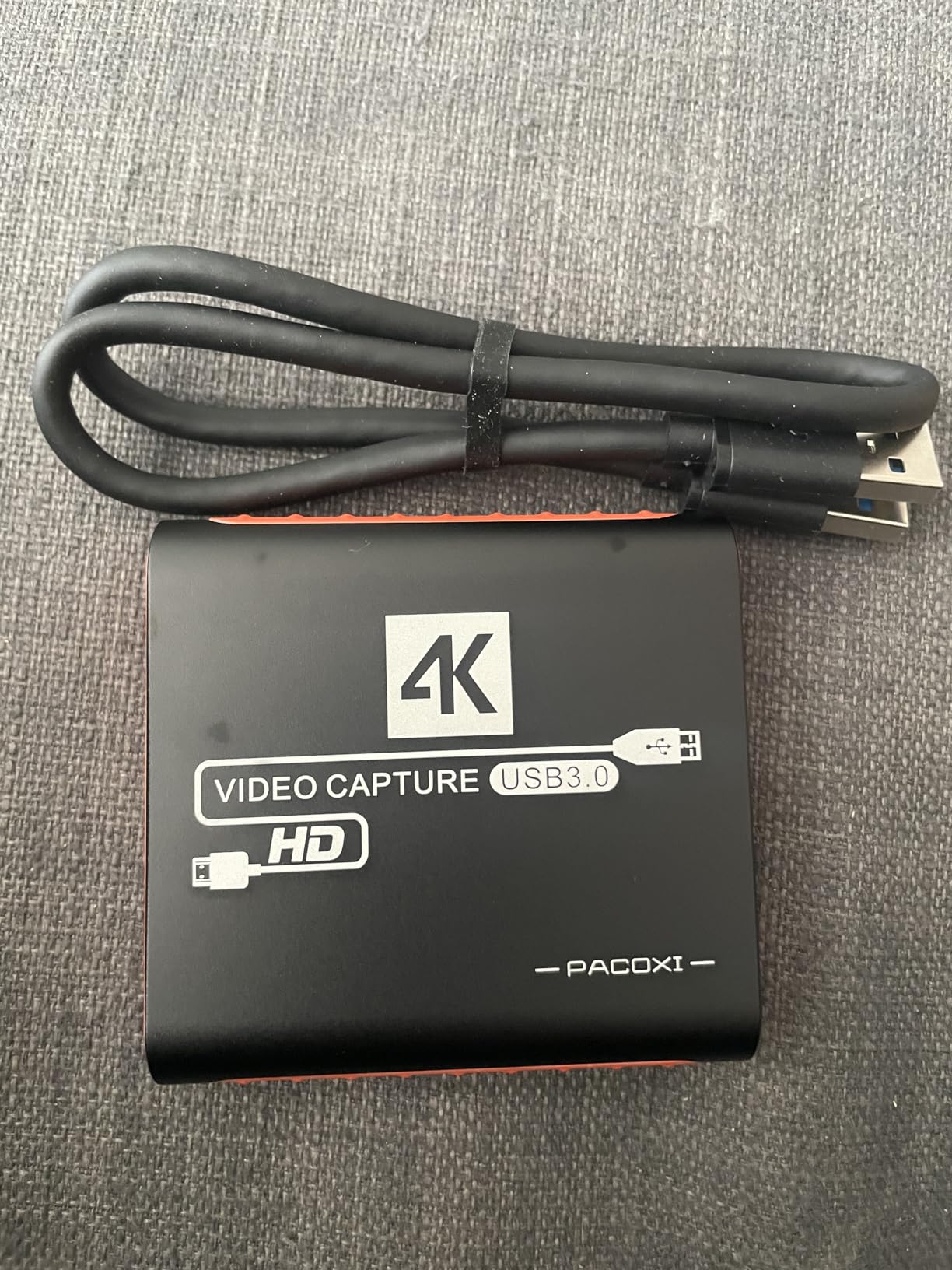
Who should buy the Swudloe dock and capture card
Buy it if you stream Switch 2, Switch OLED or Steam Deck and you want one device to handle docking, charging, hub duties and capture. It removes a cable and a power brick from the setup.
Buy it if you travel to stream. At 88.5 grams with driver-free setup and a 16-page illustrated manual, it is the most self-contained package in this guide.
Who should skip the Swudloe dock and capture card
Skip it if you need HDMI input, which means PS5, PS4, Xbox and any camera or PC source are all out. There is no HDMI input port on this device.
Skip it if you want 4K at 60fps. It cannot reach 60fps at 4K, and you will need to budget for the cable and adapter separately.
12. VANGREE VC-003 – Best for Uncompressed 4:4:4 Video
Capture Card for Nintendo Switch, 4K HDMI Capture, USB C 3.0 1080P 60FPS
1080p60 YUY2 4:4:4
4K30 input and pass-through
HDMI cable included
2 year warranty
Pros
- YUY2 4:4:4 uncompressed 1080p60 with no compression artefacts
- 4K@30Hz input and pass-through with hardware-accelerated scaling
- HDMI cable included in the box unlike most rivals
- Works with Switch Switch 2 PS5 Xbox Series X/S and PC
- Two-year warranty
Cons
- Lowest rated card here at 4.2 with 9 percent one-star reviews
- Smallest review base at 187 reviews
- Capture tops out at 1080p60 despite 4K input
- iOS and Android use needs third-party camera apps
The VANGREE VC-003 is the most technically interesting card in the guide for anyone who cares about colour. It outputs YUY2 4:4:4 uncompressed video at 1080p60, which means no compression artefacts at all, and that is the format the serious broadcast cards use.
It also ships with an HDMI cable in the box, which several rivals in this price range do not, and it works with Nintendo Switch, Switch 2, PS5, Xbox Series X and S and PC with no drivers on Windows, macOS, Linux and Android. Pass-through runs up to 4K at 30Hz with near-zero latency on the local signal.

Hardware-accelerated scaling handles the conversion from a 4K30 console signal down to a 1080p60 stream, which is a cleaner approach than letting software do it. The card is 2.81 by 2.81 by 0.67 inches, connects over USB 3.0 Type-C, and carries a two-year warranty. It is also listed with a recording scheduler.
Set expectations honestly. It is the lowest-rated card in this guide at 4.2 stars from 187 reviews, with 9 percent one-star, which is the smallest sample in the group. Capture stops at 1080p60, and using it as a source on iOS or Android requires third-party camera apps such as CamX or MoniCon.
Who should buy the VANGREE VC-003
Buy it if colour accuracy and a completely uncompressed feed matter more to you than the number of reviews behind the product. YUY2 4:4:4 is the cleanest capture path in this guide.
Buy it if you are starting from nothing and need the HDMI cable anyway, or if your setup spans Switch, Switch 2, PS5, Xbox and PC with no driver work on any of them.
Who should skip the VANGREE VC-003
Skip it if you want a proven track record. With 187 reviews and a 4.2 average, this is the least established card here, and 9 percent of owners left a one-star.
Skip it if you need 4K recording or phone capture. It tops out at 1080p60, and mobile use depends on third-party apps.
Do You Actually Need a Capture Card?
You need one if you are streaming or recording from a console. Consoles ship with their own clip systems, and those clips are short, lossy, and do not give you a live feed to broadcast, so a capture card is the only route to an unrestricted, high quality stream from a PlayStation, an Xbox or a Nintendo Switch.
You probably do not need one if you are streaming PC games. OBS Studio and Streamlabs OBS can capture a game window or a display directly, and an RTX card with NVENC handles the encoding without extra hardware, so a capture card would just add a step.
The physical chain is simple. Console HDMI out goes to the card’s HDMI in, the card’s HDMI out goes to your TV or monitor, and the card connects to your PC over USB or PCIe. The PC then sees the card as a webcam-style source that you add in OBS as a video capture device.
Internal PCIe vs External USB Capture Cards
Internal PCIe cards win on bandwidth and lose on flexibility. They sit inside your streaming PC, draw power from the motherboard, and have no cable between the card and the system, so they are the better choice for 4K60 capture and for high frame rate modes. The two internal cards here, the Elgato 4K Pro and the AVerMedia GC575, are the only devices in this guide that record 4K60.
External USB cards win on everything else. They move between machines, work with laptops and Macs, cost less, and require no opening a desktop case. The constraint is USB bandwidth, and it is a real one rather than a marketing detail, because a USB 3.0 link is the ceiling that forces most external cards to top out at 1080p60 or 2K30.
Rule of thumb: if you are streaming to Twitch or YouTube at 1080p60, external is the sensible default. If you are recording 4K video for a channel that monetises high resolution, internal is worth the installation effort.
Capture Card Buying Guide: What Actually Matters in 2026
First, separate input from capture. A card that accepts a 4K signal is not a card that records 4K, and the difference is the single most common disappointment in this category. Look for a stated maximum capture resolution, not the largest number anywhere in the listing. In this guide, eight of the twelve cards read 4K input and capture at 1080p or 2K30.
Second, check for a loop-out if you play on a second display. Cards described as capture-only have no HDMI out port at all, which means you need a splitter, and a splitter is an extra box, an extra cost and an extra place for sync to go wrong.
Third, confirm the audio path. Cards with a 3.5mm mic-in embed your commentary at the hardware level, which saves CPU and avoids routing software. Cards that need OBS restarted after audio setup will work, but you should know that before you go live for the first time.
Fourth, look at the platform list and the warranty. A card listed for Windows only is a problem on a Mac or Linux machine, and a 60-day warranty is a very different proposition from three years. The HD60 S is listed for Windows 10 and Mac, the Acer for Windows and Linux, and the Guermok for Windows, Mac, Linux and Android.
Fifth, think about what you are capturing, not just the console. If you want a DSLR, a camcorder or a Quest headset in the same stream, check that the card lists those sources. The VIXLW and the UGREEN cards name cameras and headsets explicitly; most gaming-only cards do not.
How to Set Up a Capture Card for Console Streaming in OBS
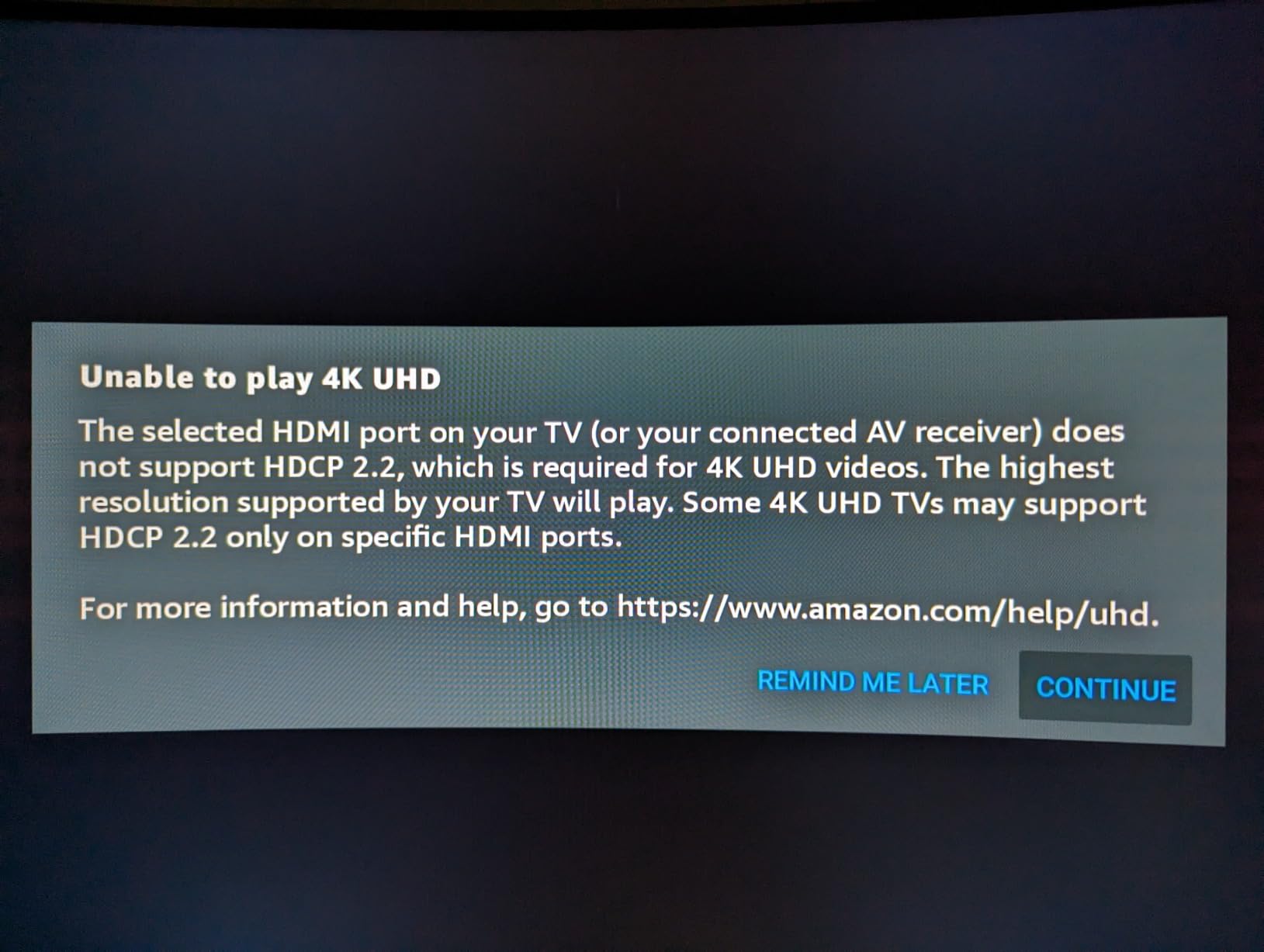
Start with the physical chain, and get it right before you open any software. Console HDMI out to the card’s HDMI in, card HDMI out to your display, card USB to the streaming PC. Turn HDCP off on the console if the source is protected, since a card cannot read a protected signal and you will get a black preview instead of a picture.
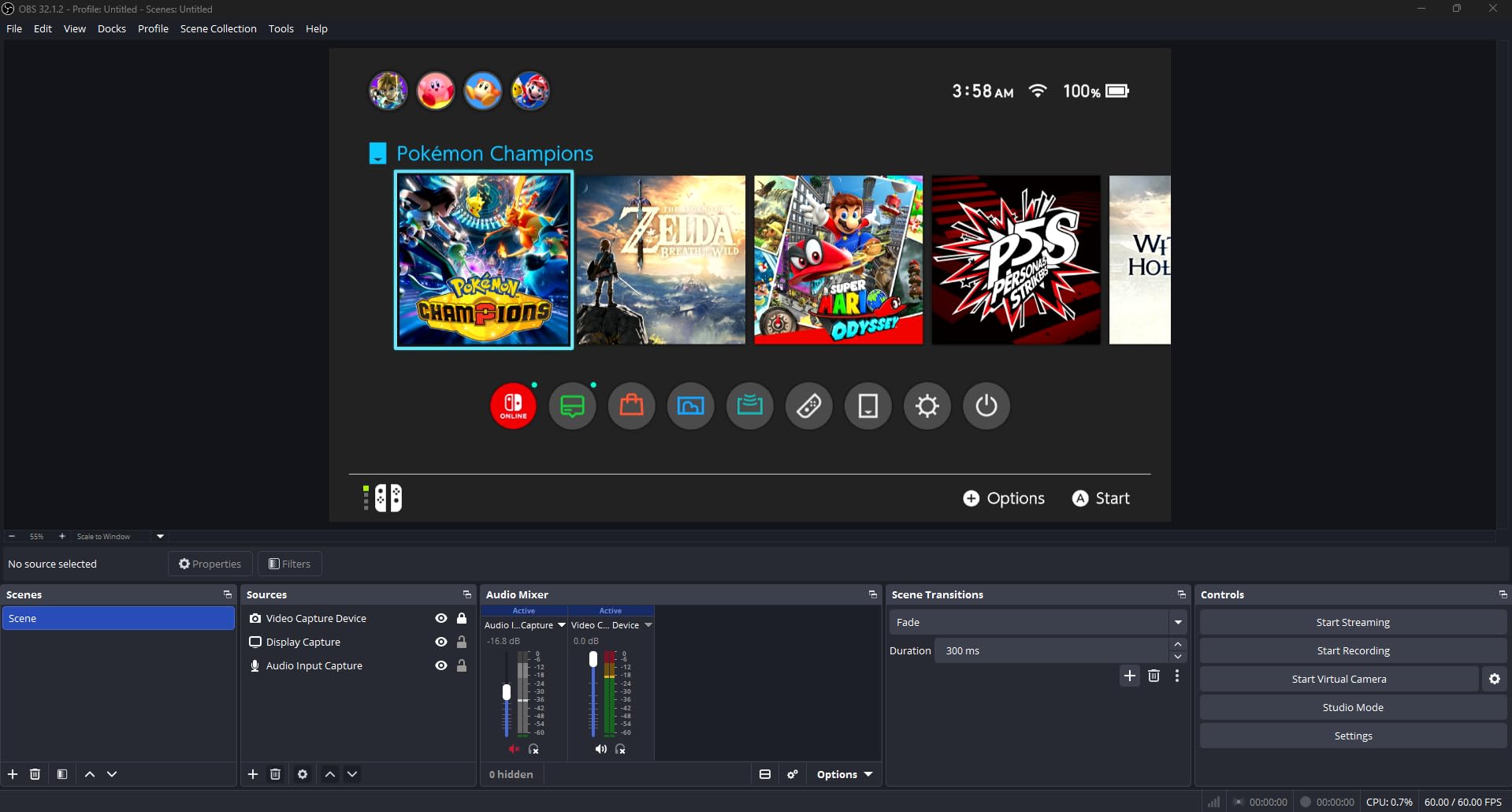
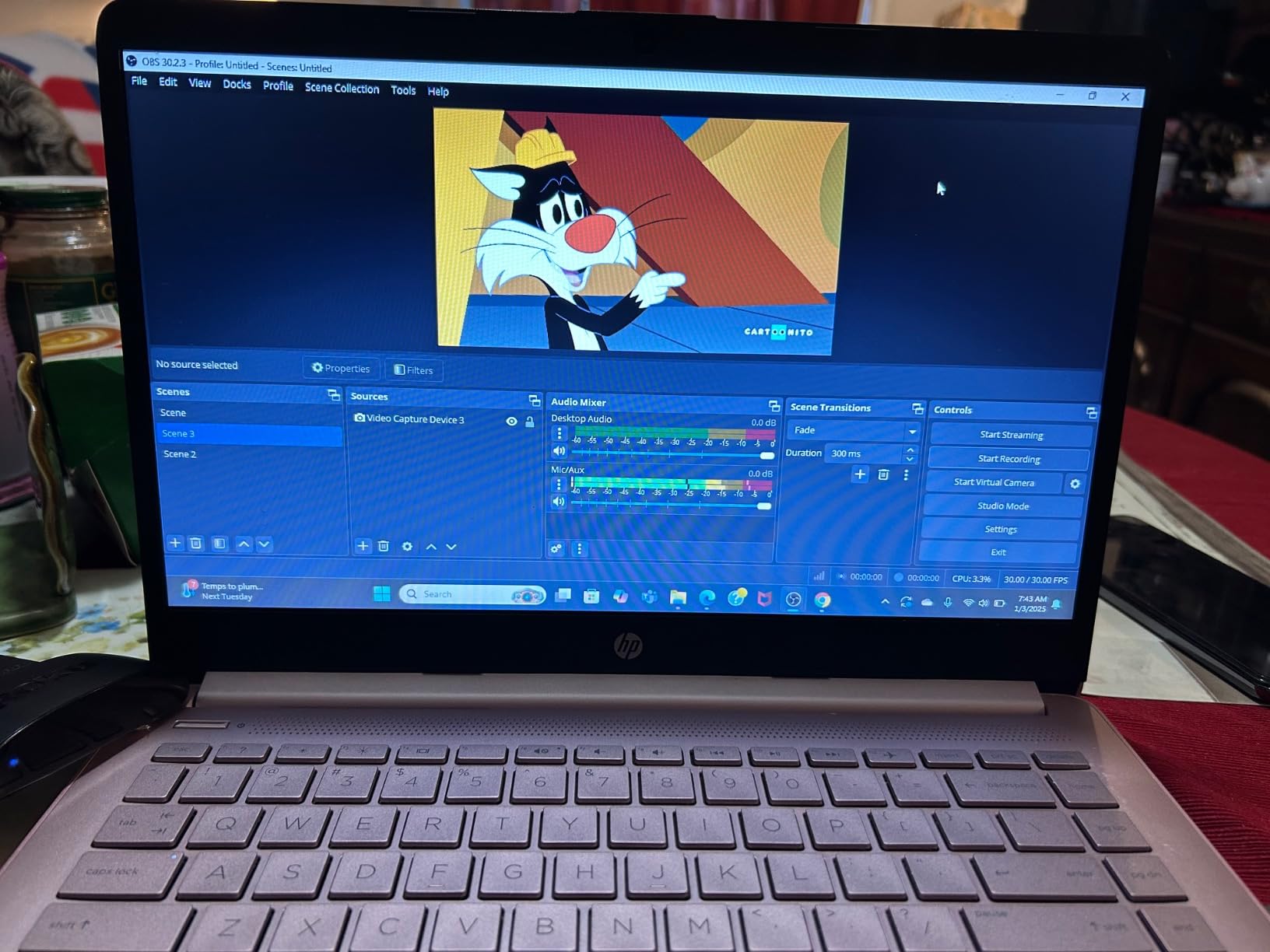
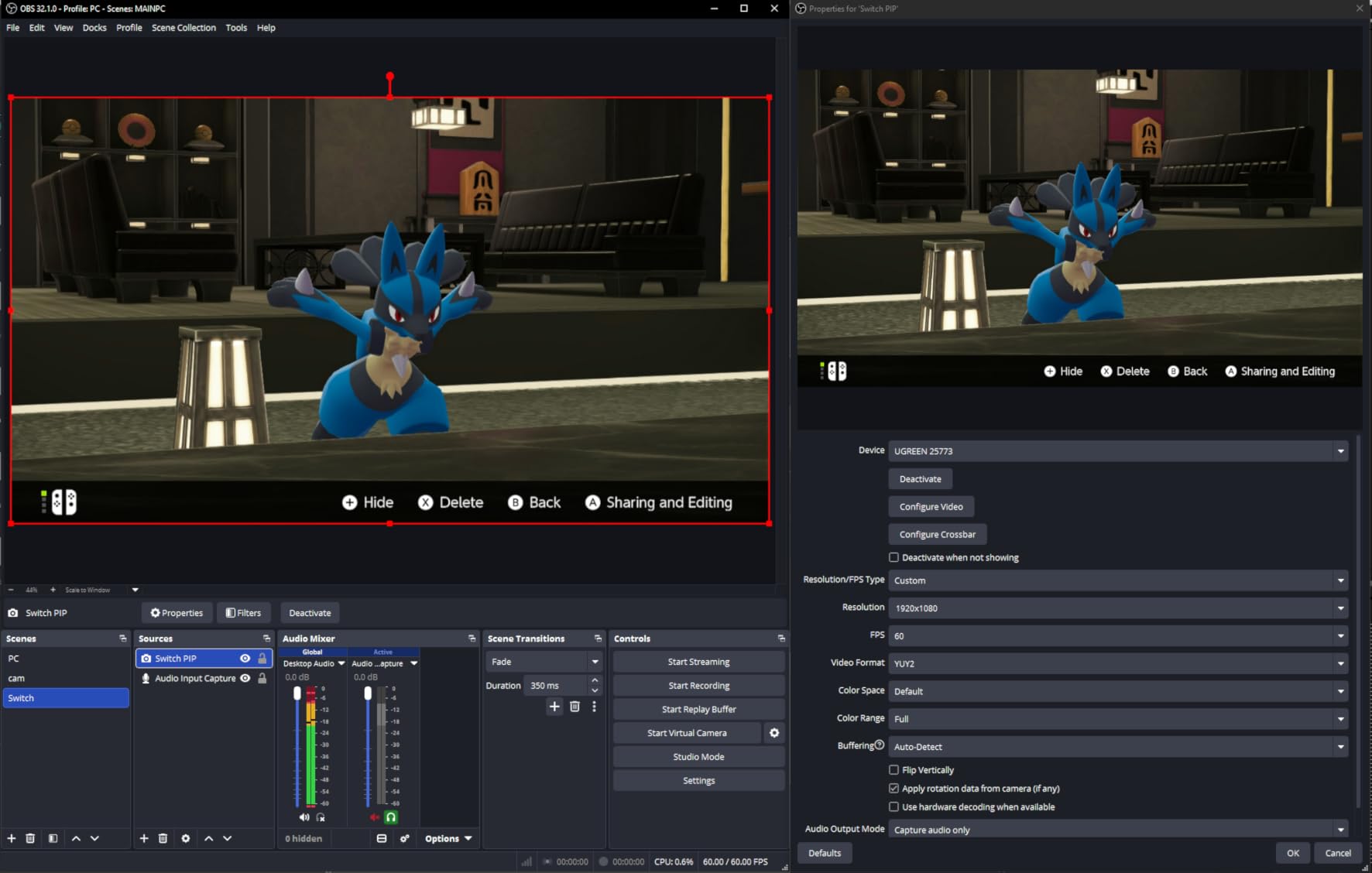
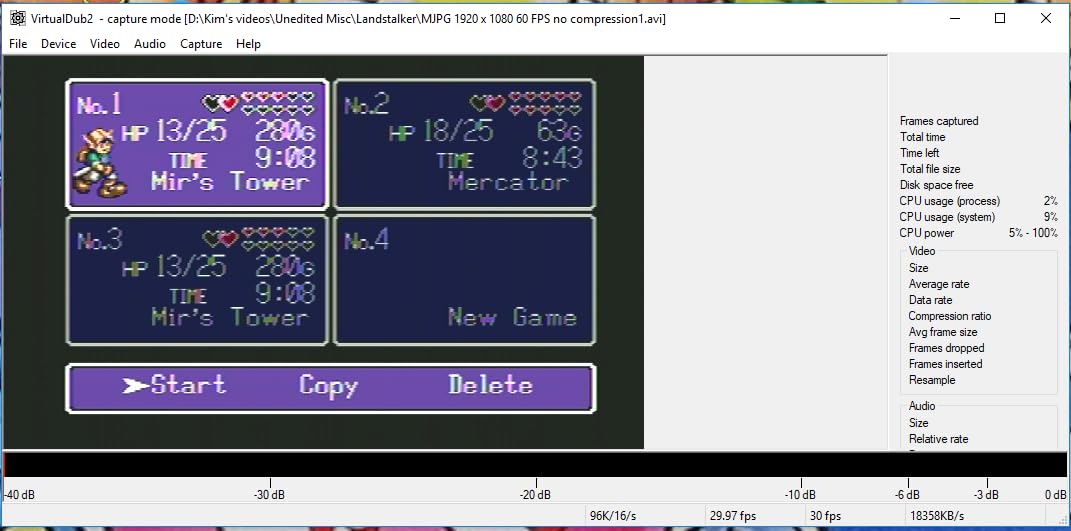
In OBS Studio, add a Video Capture Device source and pick your card from the list. Leave the resolution and frame rate alone initially and let OBS negotiate, then set them to 1920×1080 at 60fps to match what most external cards actually deliver. If the preview is black after changing resolutions, close OBS and reopen it, because UVC devices often need a full restart to renegotiate.
For audio, go to Settings, then Audio, and check the capture card’s audio input. If you plugged the card in after OBS was already running, this is the step that fails most often, and a full restart of OBS is usually what fixes it. Add a separate audio source for your microphone so you can control game audio and commentary volume independently.
Finally, set your encoder bitrate. Most platforms want between 3,000 and 6,000 Kbps for 1080p60, and pushing 4K60 into a live stream will overload the encoder rather than improve the picture. If you are recording locally rather than streaming, you can safely target a much higher bitrate on a 4K-capable internal card.
Frequently Asked Questions
What is the best capture card for console streaming?
The Elgato HD60 S is the best capture card for console streaming overall. It captures 1080p60 with true zero-lag passthrough, works on both Windows and Mac, and has the largest review base of any card in our lineup at more than 25,000 ratings. If you want 4K HDR capture instead, the Elgato Game Capture 4K Pro is the only card here that records 4K60.
What is the best capture card for PS5 streaming?
For a PS5, the Elgato HD60 S is the safest choice for 1080p60 streaming with true passthrough and no driver work. If your PS5 outputs 4K and you want a matching recording, the Elgato Game Capture 4K Pro or the AVerMedia GC575 both capture 4K60 HDR10, but both require a Windows desktop with a free PCIe slot.
What is the best capture card for live streaming on Twitch?
Twitch streaming works well at 1080p60, which is the ceiling for most external USB cards. The AVerMedia GC311 is a strong pick because its built-in H.264 hardware encoder takes work off your CPU, and the Elgato HD60 S is the pick if you want the lowest support risk. Budget cards like the Guermok GM-29A also stream to Twitch fine at 1080p60.
Do I need a capture card to stream Nintendo Switch?
Yes, unless you use the Switch’s own capture button, which is limited and does not broadcast. A capture card gives you a clean 1080p60 feed to OBS from docked mode. For Switch 2 specifically, the Swudloe 2-in-1 dock and capture card avoids needing the original dock and adds 100W PD charging while you stream.
Is OBS better than Elgato for streaming?
They are complementary rather than competing. OBS Studio is the software that records and broadcasts, and Elgato is the hardware that gets the console picture into your PC. You need OBS regardless of brand, and the capture card only decides the quality and latency of the video source OBS receives.
Is Elgato or AVerMedia better for console streaming?
Elgato is the stronger all-round choice for external cards, with the HD60 S carrying the largest support base in the category. AVerMedia is the better pick for internal PCIe cards, with the Live Gamer 4K 2.1 offering 4K144 HDR pass-through and a three-year warranty. Choose based on whether you want an external or internal card first.
Which Capture Card Should You Buy?
The Elgato HD60 S is the best capture card for console streaming in 2026. It does 1080p60 with true passthrough, needs no drivers, works on Windows and Mac, and carries more than 25,000 reviews at 4.6, which makes it the lowest-risk choice for a first console stream and a reliable second one.
Buy the UGREEN 25773 instead if you play on a television and want a 4K loop-out without adding a splitter. Buy the Elgato Game Capture 4K Pro if you have a Windows desktop with a free PCIe slot and want genuine 4K60 HDR capture. For a Switch 2 setup, the Swudloe dock and capture card removes an entire device from the chain.
Whatever you pick, check the maximum capture resolution rather than the largest number in the product name, and confirm whether the card has an HDMI out before you buy. Those two checks eliminate most of the disappointment we see in this category.