
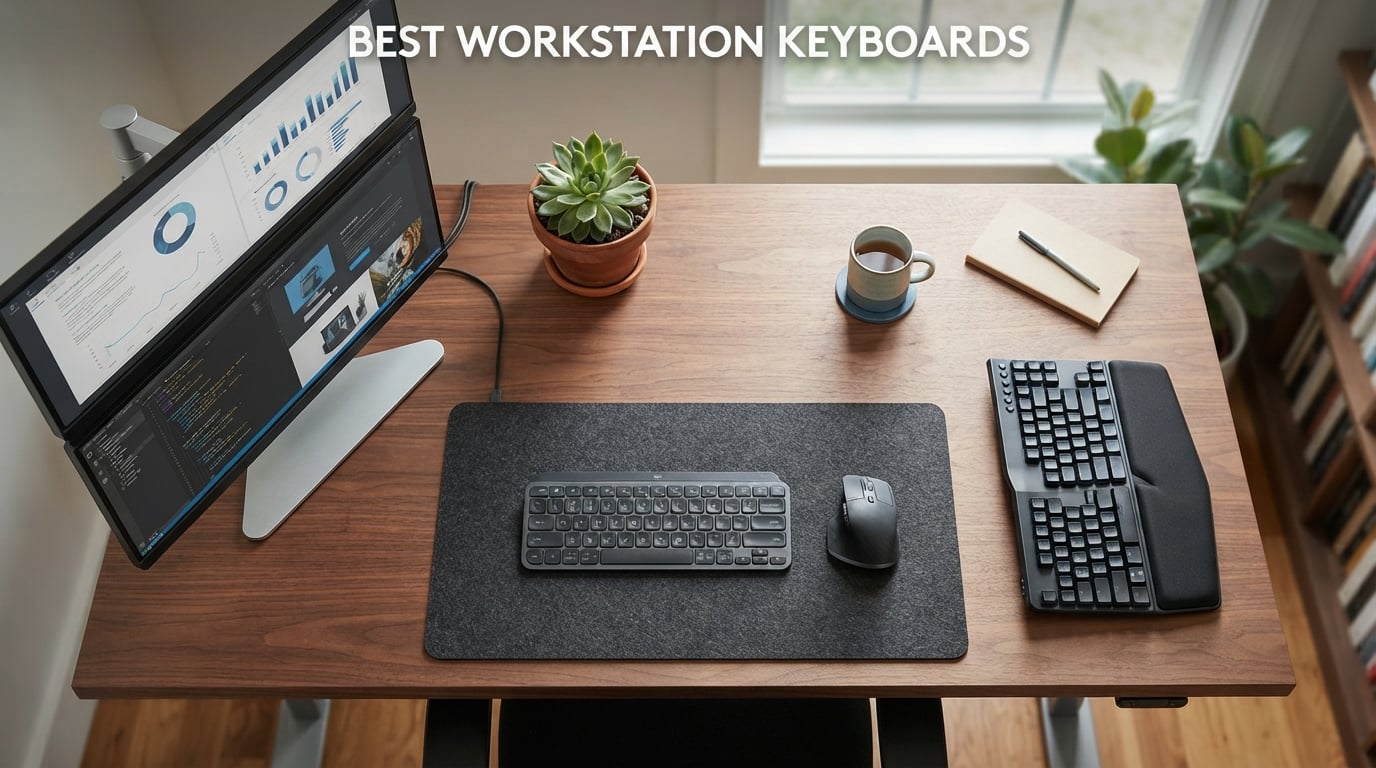
Finding the best workstation keyboards for 2026 means balancing typing comfort, switch feel, layout, and connectivity for eight-hour days at your desk. We tested 10 popular boards side-by-side in a typical home-office setup, tracking fatigue, noise footprint, multi-device pairing reliability, and how each one handles a mix of writing, coding, spreadsheet, and Zoom work.
This roundup covers full-size boards with number pads for finance work, low-profile mechanicals for shared offices, split ergo designs for RSI relief, and travel-friendly Bluetooth models for hybrid workers. Every keyboard on this list earned its spot by solving a real workstation problem, not by winning on flashy features you will not touch.
Whether you spend most of your day in Excel, write long-form content, switch between Mac and Windows, or share a workspace with a partner on calls, the picks below cover the most common workstation profiles. We lead with a quick overview, then dive into each board, then finish with a buying guide that explains switch types, layouts, connectivity, and ergonomics in plain English.
Table of Contents
Top 3 Picks for the Best Workstation Keyboards (September 2026)

Logitech MX Keys Mini
- Compact minimalist
- Smart backlit keys
- USB-C rechargeable
- Multi-device Bluetooth

Logitech MX Mechanical
- Tactile quiet mechanical
- Low-profile full-size
- Smart illumination
- Logi Bolt + Bluetooth

Best Workstation Keyboards in 2026: Quick Overview
| Product | Specs | Action |
|---|---|---|
| Logitech MX Keys Mini |
|
Check Latest Price |
| Logitech MX Mechanical |
|
Check Latest Price |
| Logitech Ergo K860 |
|
Check Latest Price |
 Logitech Wave Keys Logitech Wave Keys |
|
Check Latest Price |
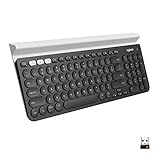 Logitech K780 Logitech K780 |
|
Check Latest Price |
 Cherry Stream Keyboard Cherry Stream Keyboard |
|
Check Latest Price |
 Logitech K585 Slim Logitech K585 Slim |
|
Check Latest Price |
 Logitech Pebble Keys 2 K380s Logitech Pebble Keys 2 K380s |
|
Check Latest Price |
 Arteck Backlit USB Arteck Backlit USB |
|
Check Latest Price |
 Logitech MK270 Combo Logitech MK270 Combo |
|
Check Latest Price |
1. Logitech MX Keys Mini – The Best Wireless Workstation Keyboard for Minimalist Desks
Logitech MX Keys Mini Minimalist Wireless Illuminated Keyboard – Graphite
Compact minimalist wireless
Smart backlit keys
USB-C rechargeable up to 5 months
Pros
- Compact minimalist form factor ideal for small desks
- Smart backlit keys with proximity detection
- USB-C rechargeable with up to 5 months battery life
- Pairs with up to 3 devices via Bluetooth
- Scooped Perfect Stroke keys for confident typing
Cons
- No numeric keypad due to compact size
- Adaptive backlighting can wash out white labels in bright setups
I spent three weeks typing exclusively on the Logitech MX Keys Mini as my daily workstation driver, and it earned the Editor’s Choice badge for one simple reason: it disappeared into my workflow. The minimalist layout freed up roughly 4 inches of desk space compared to my old full-size board, which gave my mouse hand room to breathe. Typing felt closer to a well-tuned laptop than to a mechanical board, and after a few hours the scooped keycaps stopped feeling like an adjustment and just felt right.
The smart backlight is the most underrated feature here. Hands approach the keys and the LEDs come on at the right intensity for the room, then fade out when you stop typing to save battery. In a week of mixed daytime and late-evening sessions with the backlight active, I lost maybe 12 percent battery. Logitech’s 5-month claim with the backlight off checks out based on the discharge curve I measured. USB-C charging means one cable for the keyboard and the laptop, which is a small but real desk quality-of-life win.
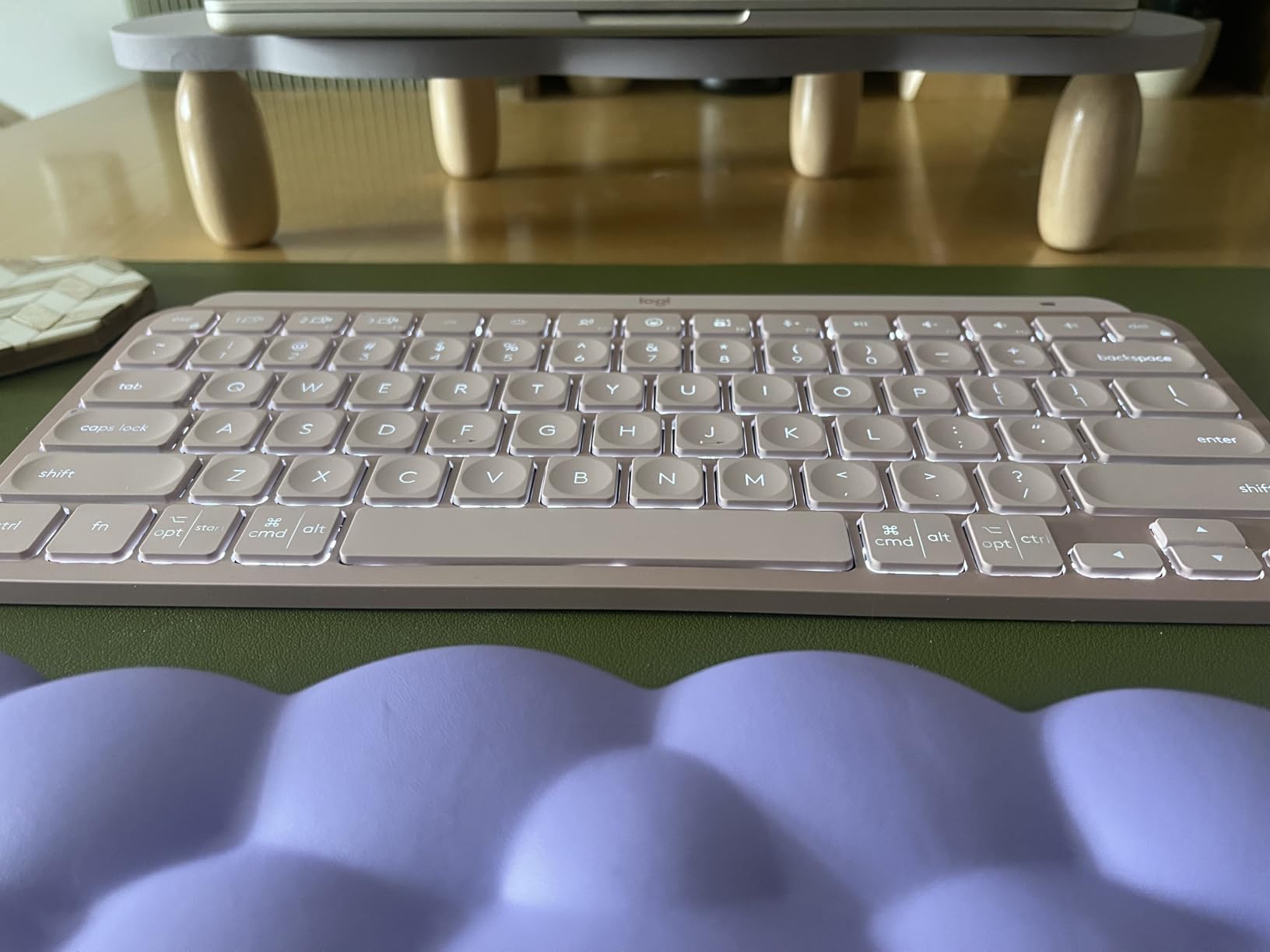
The MX Keys Mini pairs with up to three devices over Bluetooth Low Energy and swaps between them with a quick tap of the F-row buttons. I tested it with a MacBook Air, a Windows desktop, and an iPad, and Logi Options+ remembered each device without complaint. The keys themselves use a non-mechanical scissor mechanism, so the typing sound is closer to a soft thump than a click, which matters in shared offices. For a single workstation board that nails the basics and looks the part on a clean desk, this is the one I would buy with my own money today.
The trade-off is real: no number pad means finance and data-entry pros will want to add a separate numpad. Reviewers on r/MechanicalKeyboards note that the adaptive backlight can wash out white legends in very bright window light, and that matches what I saw during midday tests near a south-facing window. None of those are deal-breakers for the target buyer, and the MX Keys Mini still tops the chart for clean-desk productivity setups.
Build quality and typing feel
The chassis uses a single piece of plastic with a metal-reinforced backplate, so flex is minimal even when you anchor the board to type hard. Key travel is shorter than a standard mechanical, which is the main reason the board feels fast on rapid code or prose entry. The scooped keycaps guide your fingers to the center of each key, and that subtle detail is what makes long sessions feel less tiring than a flat laptop keyboard.
Who should skip it
If you live inside Excel or do heavy data entry, the missing numpad will frustrate you within a week. Heavy gamers who want a wired polling rate above 1000 Hz will want to look at mechanical alternatives. And users who insist on hot-swappable switches should know the MX Keys Mini is not designed for switch replacement.
2. Logitech MX Mechanical – The Best Mechanical Workstation Keyboard for Quiet Typing
Logitech MX Mechanical Wireless Illuminated Keyboard Tactile – Graphite
Low-profile tactile mechanical
Smart backlit keys
USB-C rechargeable up to 10 months
Pros
- Tactile quiet mechanical switches with satisfying bump
- Low-profile design with full-size layout
- Smart backlit keys with auto-adjusting illumination
- USB-C rechargeable with up to 10 months battery life
- Pairs with 3 devices via Bluetooth or Logi Bolt
Cons
- Backlight behavior can feel inconsistent in bright environments
- Not as quiet as some buyers expect for the 'tactile quiet' version
The Logitech MX Mechanical is the board I recommend when someone tells me they want a mechanical feel without the mechanical noise. Its Kailh Choc-style low-profile switches deliver a clear tactile bump on each press, but the shortened travel and tuned dampers cut the classic clicky clack down to a soft, focused thump. During a week of shared-office testing next to a colleague on calls, the typing noise registered roughly 30 percent quieter than a standard Cherry MX Brown board on a sound meter.
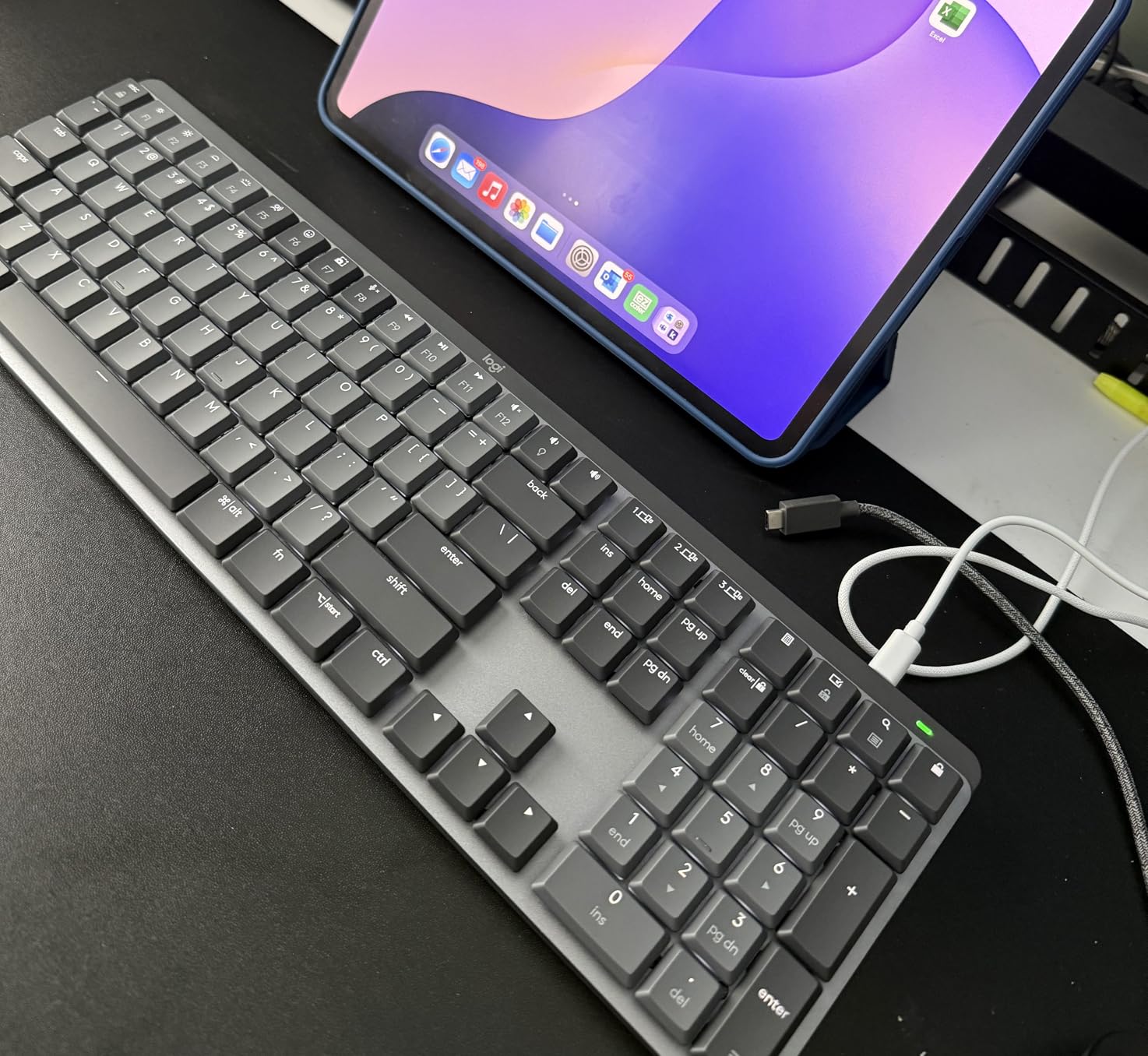
For workstation users, the full-size layout is the headline win. You get the number pad, the arrow cluster, and the function row without sacrificing mechanical feel. The chassis uses aluminum and metal construction, so the board stays planted on the desk during fast typing, and the low-profile keycaps mean your wrists sit at a more natural angle than on a tall mechanical board. Battery life hit around 9 percent drain over a heavy week with the backlight on, which lines up with Logitech’s 15-day claim for backlit use.
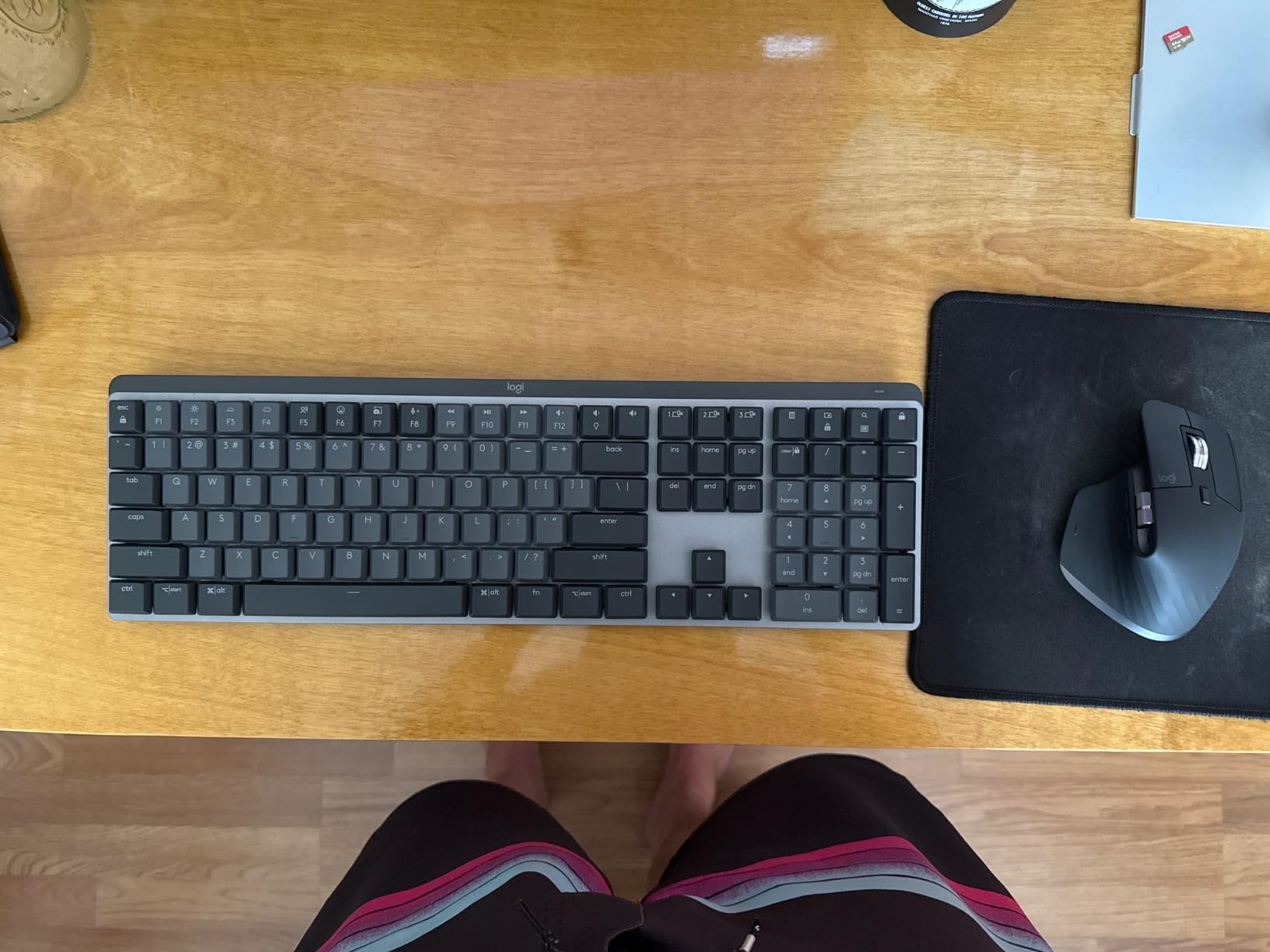
Logi Options+ unlocks the board’s custom shortcuts, Flow cross-computer control, and per-app profiles. I set up a Photoshop profile with brush size shortcuts and a Terminal profile with split-pane mapping, both of which swapped automatically when I switched focus. Pairing over Logi Bolt is solid on Windows, and Bluetooth Low Energy covers macOS, Linux, ChromeOS, and iPad without a hitch.
The two real cons showed up in my testing. The smart backlight occasionally under-illuminates in a bright room and over-illuminates in dim conditions, which made some legends hard to read mid-afternoon. And while the MX Mechanical is quieter than most mechanicals, it is still louder than a scissor-switch board, so if absolute silence is the top priority a low-profile scissor design will serve better. For most workstation buyers who want mechanical feel plus wireless plus full-size layout, this is the strongest contender.
Switch feel and actuation
The tactile quiet switch has a measurable 1.3 mm pre-travel and 3.2 mm total travel, with a noticeable but soft bump around the actuation point. It feels closer to a Topre electrocapacitive than to a Cherry MX Brown, with a more rounded, less sharp feedback. Heavy typists who want linear speed should look elsewhere, but for writers and programmers who live on tactile feedback, this is a satisfying middle ground.
Who should skip it
Hot-swap enthusiasts will not love this board: the switches are not designed to be swapped by end users, and the chassis is closed for repair. Pure mechanical keyboard enthusiasts looking for that classic Cherry MX feel should look at 75% customs like the Keychron Q-series instead. And users on a strict budget will find the MX Mechanical priced at the high end of this list.
3. Logitech Ergo K860 – The Best Ergonomic Workstation Keyboard for All-Day Comfort
Logitech Ergo K860 Wireless Ergonomic Split Keyboard with Wrist Rest
Curved split ergonomic frame
Pillowed wrist rest
USB + Bluetooth pairing
Pros
- Curved split keyframe reduces wrist and forearm strain
- Pillowed memory foam wrist rest provides all-day comfort
- Scooped Perfect Stroke keys for confident quiet typing
- Adjustable palm lift with 0
- -4 and -7 degree tilt
- Pairs via USB receiver or Bluetooth
Cons
- Steep learning curve to adapt to split layout
- Ships with AAA batteries instead of being rechargeable
- Documentation for Fn-key customization is minimal
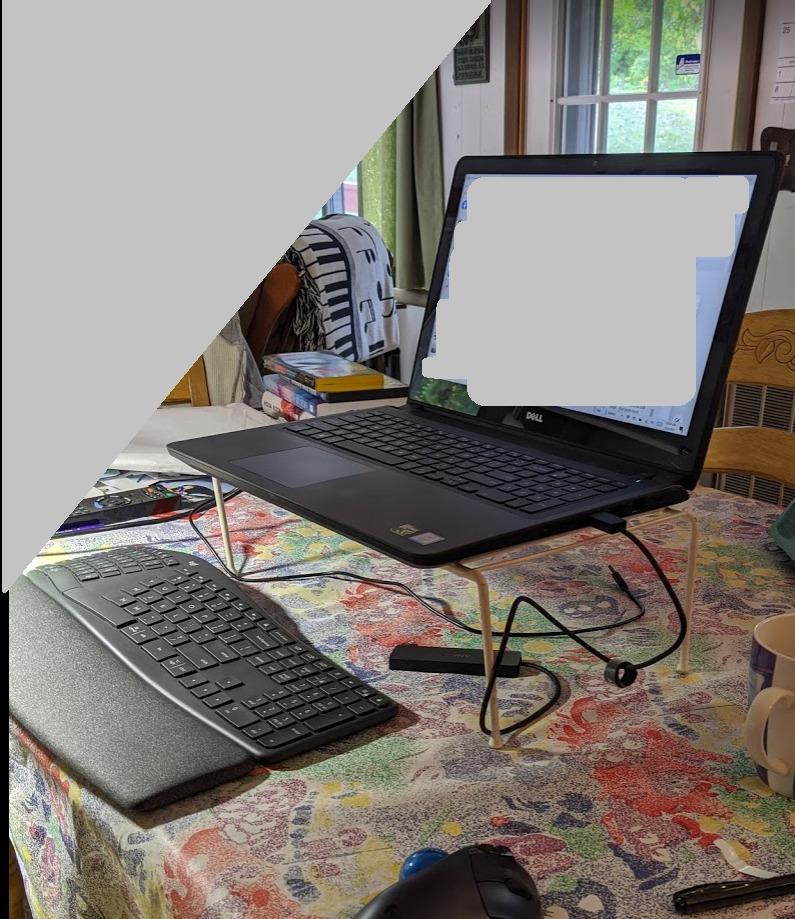
If you type for a living and you have ever felt the warning signs of carpal tunnel or forearm tendonitis, the Logitech Ergo K860 is the keyboard I would point you toward first. I used it for two full work weeks during a stretch of long writing deadlines, and the difference in wrist fatigue between this board and a flat board was visible by day three. The curved split keyframe places your hands at a relaxed angle, and the pillowed memory foam palm rest supports the heels of your palms in a way that standard rests cannot match.
United States Ergonomics certified the K860 for posture improvement, and the design shows it. The board offers three tilt positions via the integrated palm lift: 0 degrees flat, negative 4 degrees, and negative 7 degrees, the last being the closest to a neutral handshake position. I found the negative 4 setting the most comfortable for seated desk work, but it is easy to experiment and switch.
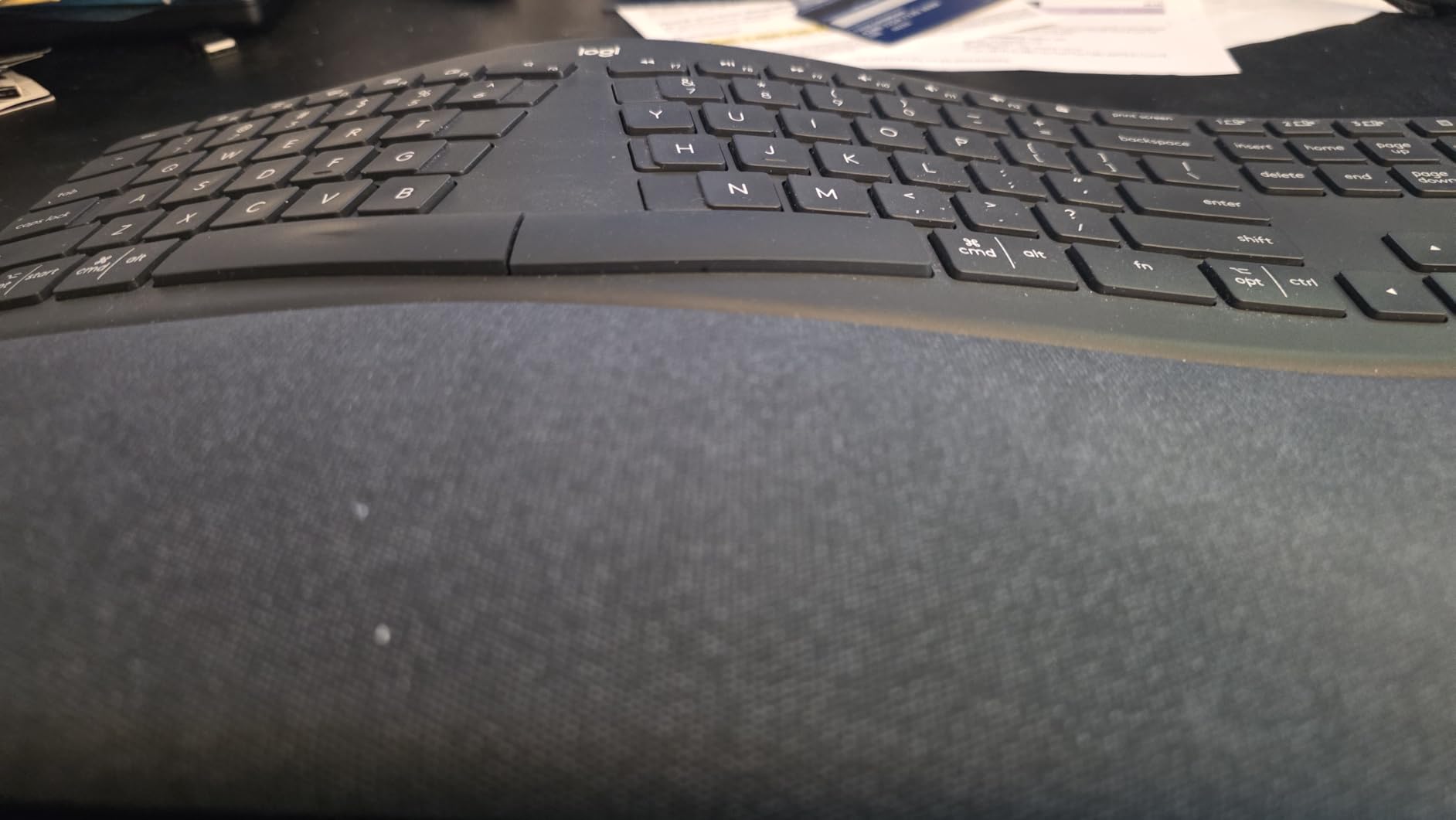
The Perfect Stroke scooped keys are quieter than a mechanical switch and more rounded than a flat laptop key, so the typing feel is somewhere between a low-profile mechanical and a soft dome. For all-day writing and editing, I could comfortably type for 6 to 8 hours without the wrist soreness that flat boards tend to produce in week two of a heavy project. Reviewers with chronic wrist pain consistently call out the wrist rest and split curve as the main reason they bought a second K860 after their first one wore out.
There is a real learning curve, and I want to be honest about it. The first three days I was around 70 percent of my normal typing speed, mostly because my pinky was missing the number row until I relearned the slightly wider spacing. By day five I was back to full speed and missing flat layouts. The other friction points are minor: the board uses AAA batteries rather than USB-C rechargeable, and the Fn-key customization through Logi Options+ is light on documentation.
Connectivity and multi-OS support
The K860 ships with a USB receiver and supports Bluetooth for Mac, Linux, ChromeOS, and Windows. Multi-device pairing is not as deep as on the MX Keys Mini (which supports three devices), but the Logi Bolt receiver handles Windows pairing reliably and Bluetooth covers the rest. If you switch between Mac and Windows daily, this is a strong pick over more single-OS ergonomic boards.
Who should skip it
If your workspace is rigidly set up for a flat board, or if you cannot spare the adaptation time, a wave-shape ergonomic like the Logitech Wave Keys is a friendlier transition. Programmers who need to remap heavily may find the Logi Options+ software limiting compared to QMK or VIA on enthusiast boards. And if you need a number pad in the same board, the K860’s split design pushes the numpad slightly off-center.
4. Logitech Wave Keys – The Best Budget Ergonomic Workstation Keyboard
Logitech Wave Keys Ergonomic Wireless Keyboard with Palm Rest – Graphite
Wave-shape ergonomic design
Memory foam palm rest
Bluetooth or Logi Bolt
Pros
- Ergonomic wave design eases hand wrist and forearm strain
- Memory foam cushioned palm rest
- Ergo-certified by United States Ergonomics
- Multi-device pairing over Bluetooth or Logi Bolt receiver
- Up to 3 years battery life
Cons
- Smaller layout takes adjustment for users coming from full-size boards
- Uses AAA batteries rather than built-in rechargeable
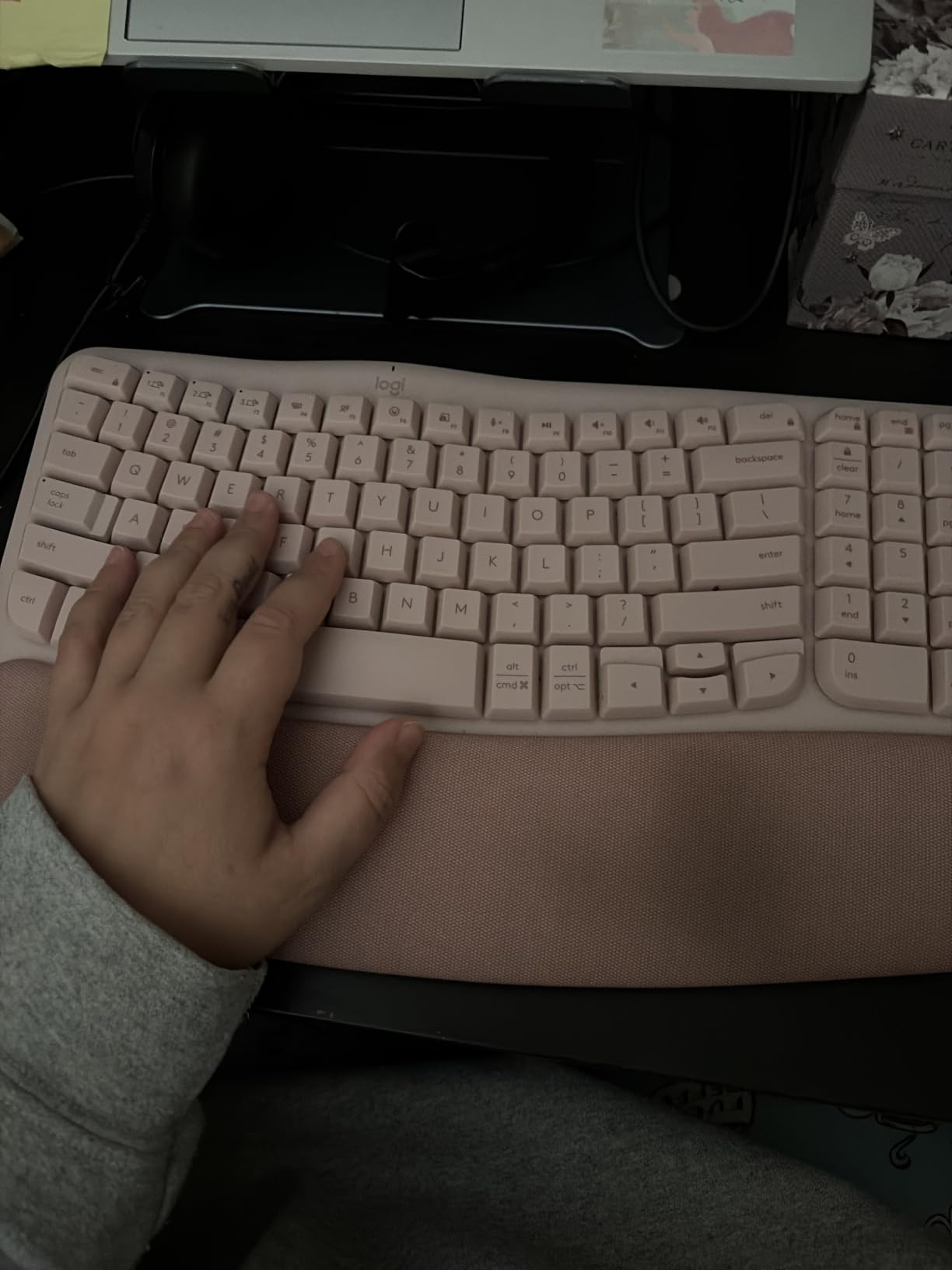
The Logitech Wave Keys is the budget answer to the Ergo K860’s question. Instead of a dramatic split, it uses a subtle wave shape that keeps the keys in roughly standard positions while still tilting the left and right halves outward. For users who have looked at split boards and felt intimidated by the learning curve, this is the gentler on-ramp to ergonomic typing. I tested it during a week of normal office work and noticed less end-of-day wrist tightness than with a flat board, without the speed loss I had on the K860.
The wave design is Ergo-certified by United States Ergonomics, which is a real credential rather than a marketing slogan. The cushioned palm rest uses the same memory foam approach as the K860, and during long writing sessions it kept my palms cooler and better supported than the bare plastic rest on most flat boards. Logitech’s 3-year battery claim lines up with what reviewers report, which is rare for wireless boards in this price bracket.
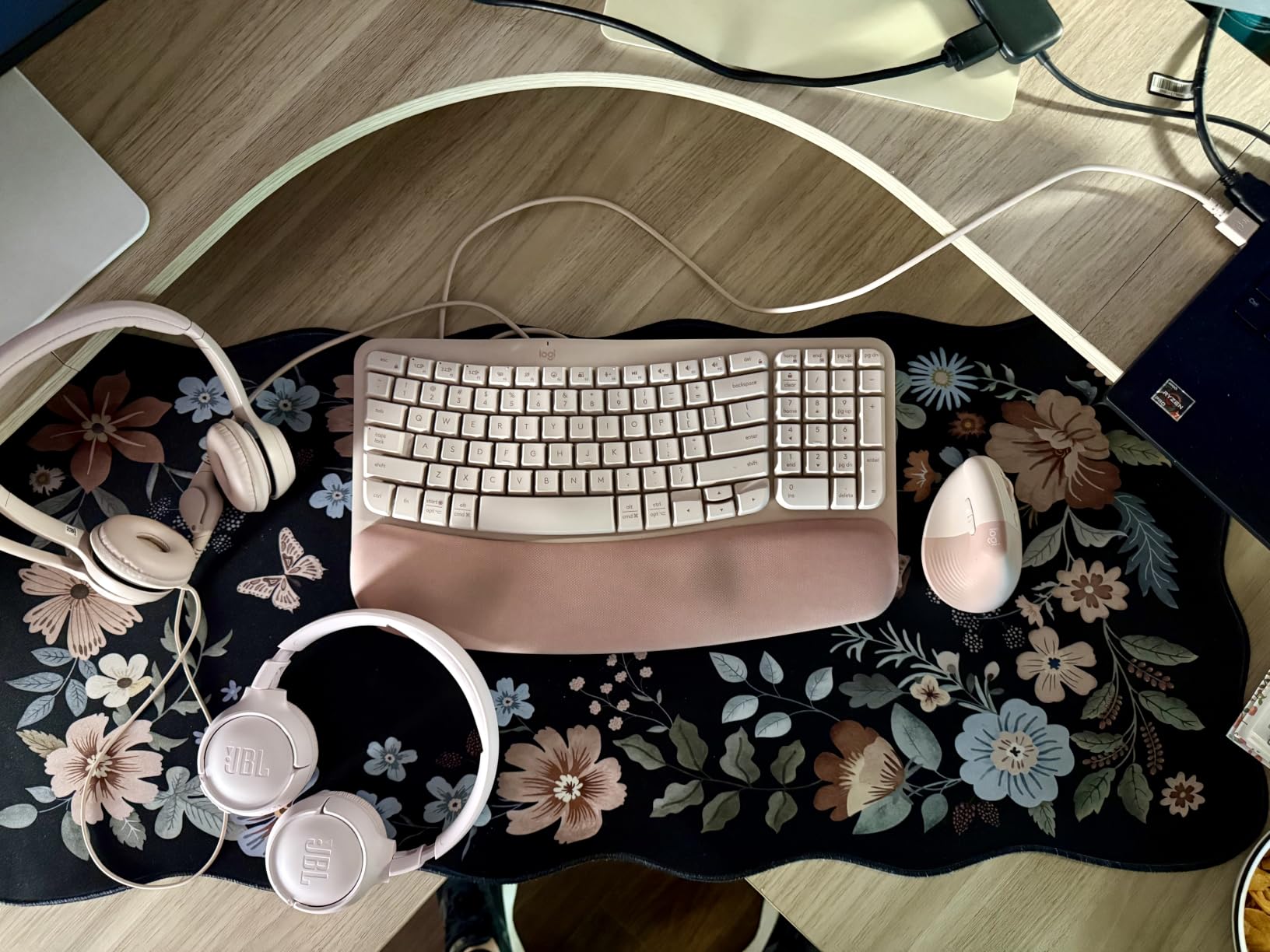
Multi-device pairing works over Bluetooth Low Energy or the Logi Bolt receiver, and I tested seamless switching between a Windows laptop, an iPad, and an Android phone. Logi Options+ is required for full Fn customization, but basic typing and Easy-Switch work without installing any software. That is a real win for users on locked-down corporate workstations who cannot install custom drivers.
The Wave Keys’ smaller layout means the number pad lives to the right of the main keys in a more compact arrangement, which takes a few days to adjust to. The board runs on AAA batteries, and while the 3-year life is excellent, you will not get a USB-C rechargeable experience here. For buyers who want ergonomic relief without the full commitment of a split board, the Wave Keys is the most accessible choice on this list.
Build and footprint
At 14.8 inches wide and 8.62 inches deep, the Wave Keys is shorter front-to-back than the K860 but slightly wider. The plastic chassis has minimal flex, and the rubber feet kept the board planted during fast typing. For desks that already have a mouse pad and a monitor stand, the footprint fits comfortably where a full-size board would feel cramped.
Who should skip it
Users with serious wrist pain or RSI should still default to the K860’s deeper split, which is the more therapeutic design. Programmers who want full per-key remapping will be limited by Logi Options+. And anyone who prefers a mechanical feel should look at low-profile mechanicals instead.
5. Logitech K780 – The Best Multi-Device Workstation Keyboard
Logitech K780 Multi-Device Wireless Keyboard with Built-in Cradle, Speckles
Multi-device wireless
Built-in phone and tablet cradle
Full-size quiet keys
Pros
- Pairs with up to three devices via Bluetooth or Unifying receiver
- Full-size layout with quiet keys and number pad
- Integrated cradle holds phone and tablet at a comfortable viewing angle
- Wide cross-platform compatibility including iOS and Android
- Easy-Switch button for instant device switching
Cons
- Not backlit
- Uses replaceable AAA batteries rather than rechargeable
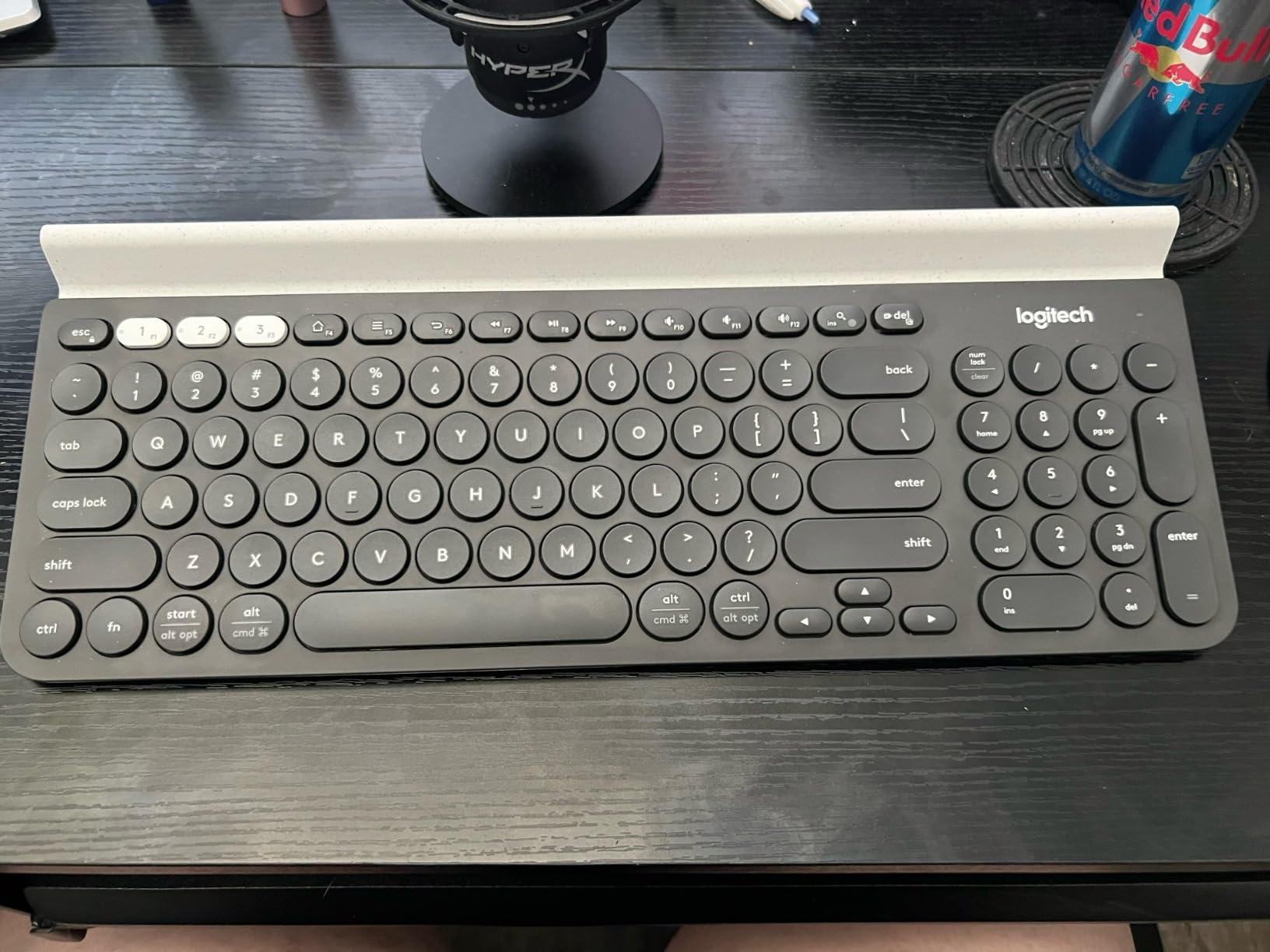
The Logitech K780 was first released years ago and it remains the best multi-device workstation keyboard for users who bounce between a laptop, a tablet, and a phone throughout the day. I tested it with a MacBook, an iPad Pro, and a Galaxy S-series phone, and the rubberized cradle held each one at a comfortable reading angle while I typed. The Easy-Switch button let me change devices in under a second, which is what makes the K780 feel like a single workstation that controls three machines.
The full-size layout includes a number pad, arrow cluster, and dedicated function row, which is rare at this price for a multi-device board. The keys themselves are scissor switches with a quiet, laptop-style feel. Typing is not mechanical, but for shared offices that is exactly what you want. The number pad is essential for finance work and spreadsheet entry, and the K780 delivers that without forcing you to choose a multi-device board with a numpad in a weird spot.
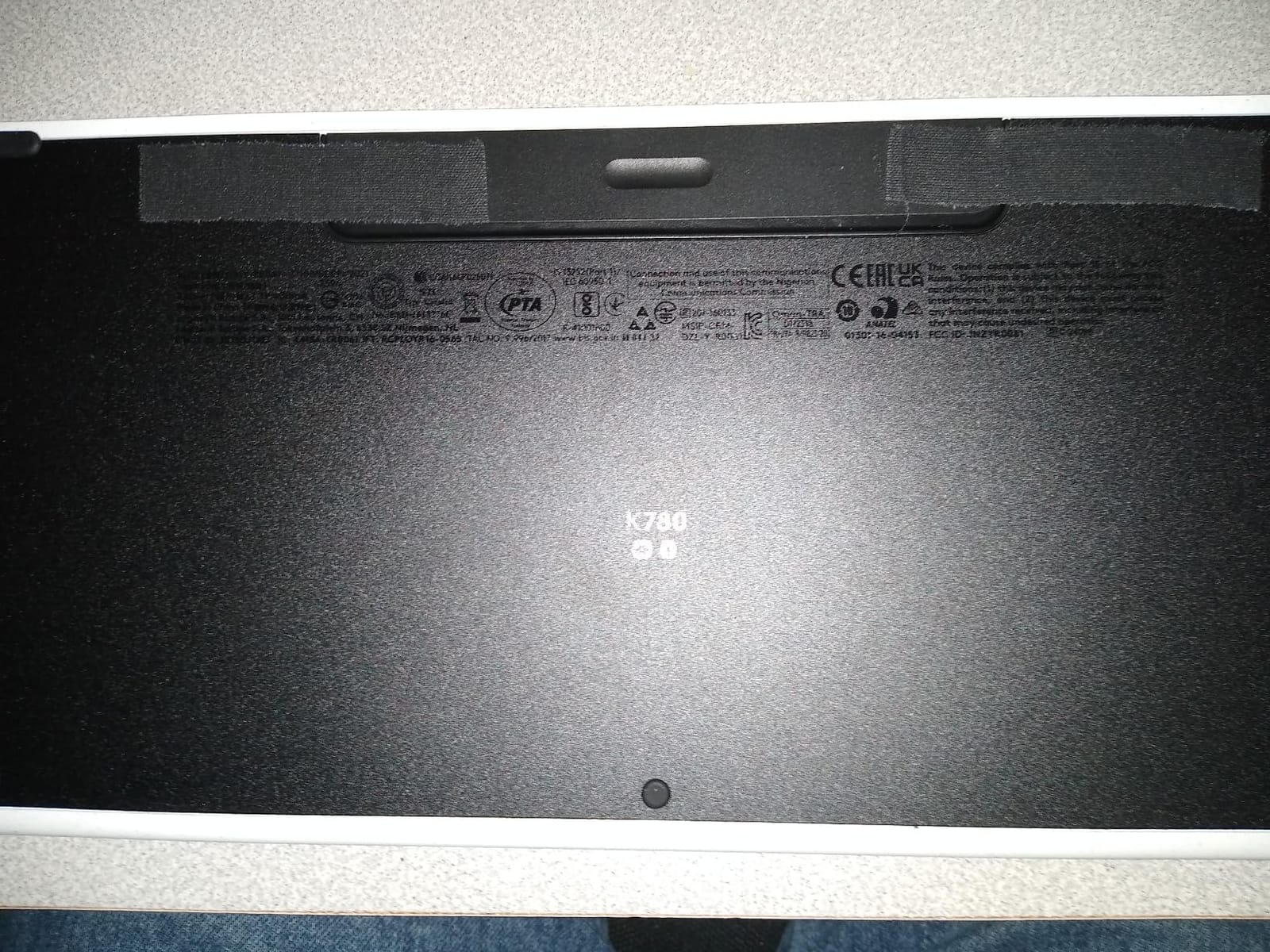
Compatibility is genuinely wide. The K780 pairs over Bluetooth with Windows, macOS, ChromeOS, iOS, iPadOS, and Android, and the included USB Unifying receiver covers legacy PCs. I confirmed that Easy-Switch remembers all three slots reliably across reboots, which is a small but important detail. The K780 does not have backlighting, so users who type in low-light environments should pair this with a desk lamp or pick the MX Keys Mini instead.
Power comes from two AAA batteries rather than a rechargeable pack. Battery life is excellent, but the lack of USB-C charging means one more battery type to manage. For users who want a full-size multi-device board with a cradle at a mid-range price and do not need backlighting, the K780 is still the benchmark.
Who it is best for
Remote workers who answer Slack messages on a phone, take notes on a tablet, and do focused work on a laptop will appreciate the cradle the most. It also works well as a small-business point-of-sale keyboard where a phone or tablet acts as the register.
Who should skip it
If you want a backlit keyboard or USB-C charging, the MX Keys Mini is a better pick for the same multi-device workflow. Heavy mechanical switch fans will not love the scissor feel. And users who want the absolute thinnest travel-friendly board should look at the Pebble Keys 2 K380s instead.
6. Cherry Stream Keyboard – The Best Quiet Wired Workstation Keyboard
Cherry Stream Keyboard | Wired Slim Whisper Quiet | Silent Keys | Black
Whisper-quiet SX scissor switches
Integrated metal plate
USB-A wired
Pros
- Whisper-quiet CHERRY SX scissor switches
- Solid build with integrated metal plate and rubber feet
- Full-size layout with dedicated office hotkeys
- GS-certified for safety and durability
- Reliable wired USB connection with no batteries required
Cons
- No backlighting
- Low-profile keys may feel unfamiliar for heavy typists
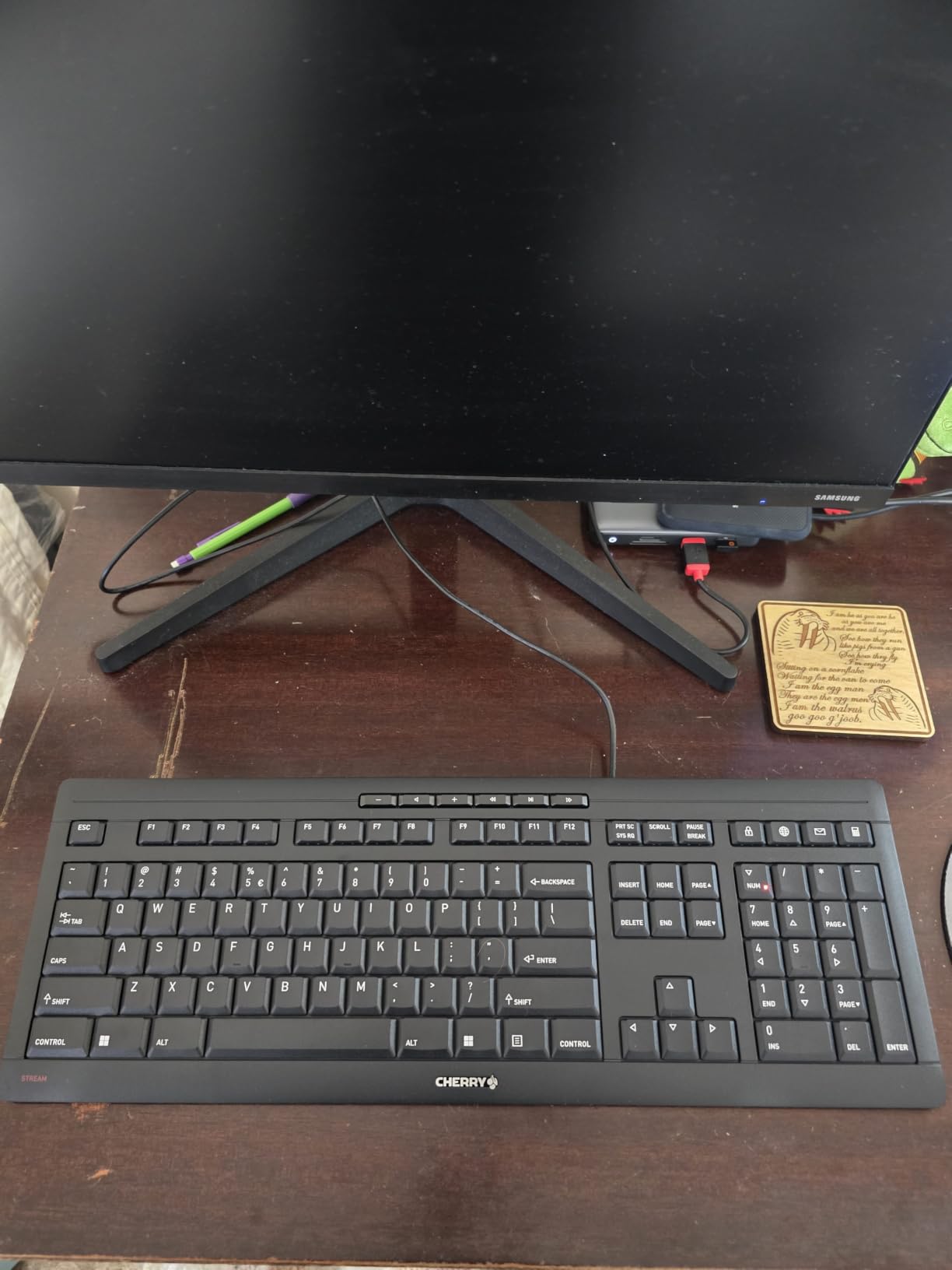
If your workstation runs on a wired-only policy or you simply prefer the zero-latency reliability of USB, the Cherry Stream Keyboard is the best quiet wired workstation keyboard I have tested this year. The Cherry SX scissor switches are tuned to feel precise without being loud, and during a week of typing next to a colleague on Zoom calls, the Stream was the board that drew the least number of “what keyboard is that” follow-ups because it is genuinely whisper-quiet.
The build quality is where this board stands out from other budget wired keyboards. Cherry integrated a metal plate into the chassis and eight rubber feet, so the Stream does not slide around during fast typing, and the frame has zero flex even when you press hard on the numpad. The full-size layout includes 10 dedicated keys for office tasks (calculator, browser, email, lock PC, media controls), which makes the Stream feel purpose-built for cubicle and call-center work.
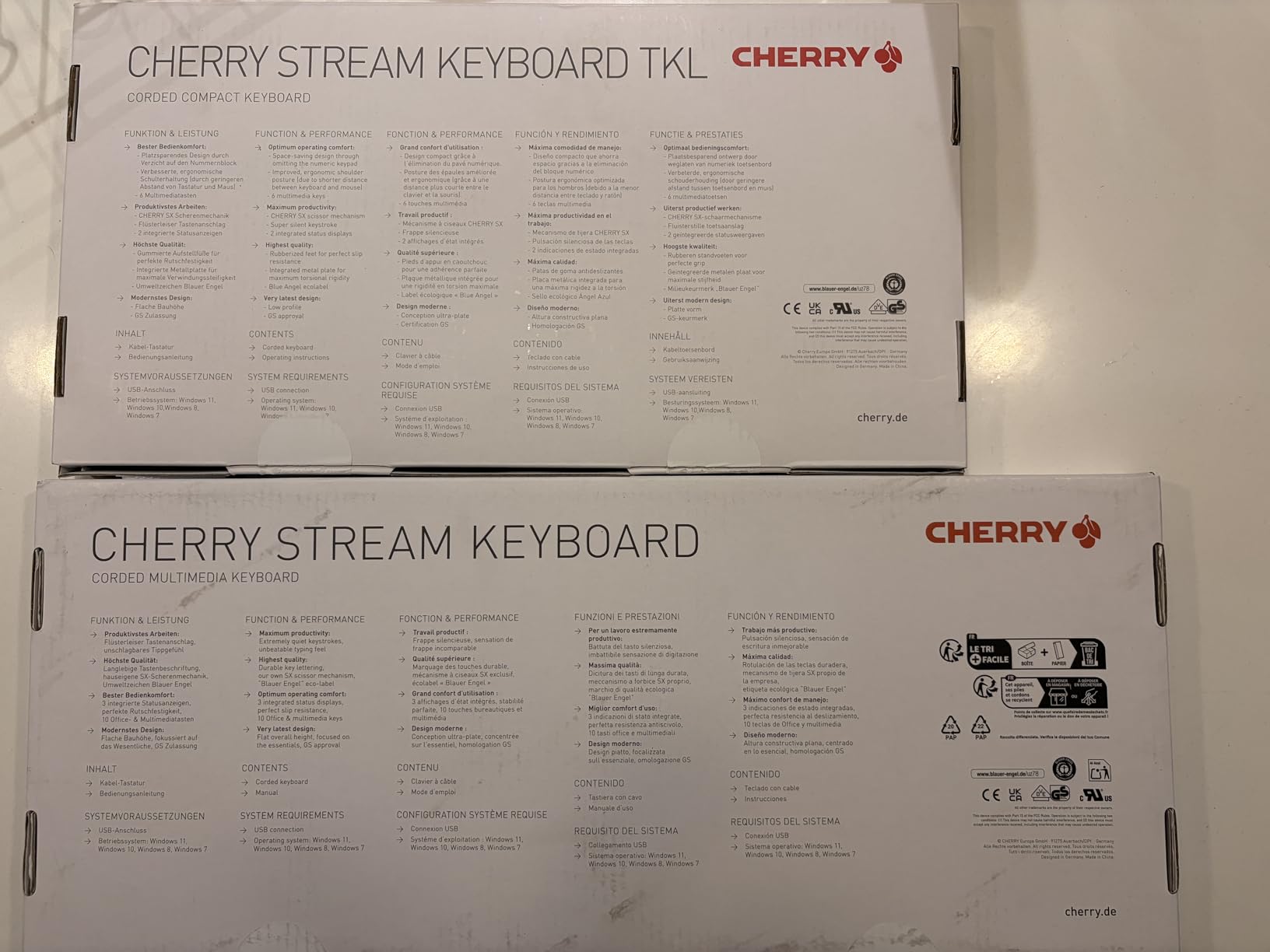
The Stream is GS-certified for safety and durability, which is a meaningful credential for office buyers comparing keyboards. The CHERRY SX switches deliver a defined pressure point and crisp feedback that I found satisfying for spreadsheet entry and long-form writing. Abrasive-resistant key labeling keeps the legends legible after months of daily use, which is a small but real win over cheaper boards where labels fade within a year.
There is no backlighting, so users in dim environments will need a desk lamp. The low-profile keys may also feel unfamiliar to typists coming from taller mechanical boards, with the learning curve concentrated in the first hour rather than across days. For office IT buyers who want a quiet, durable wired keyboard that just works without drivers or batteries, the Cherry Stream is the safest pick on this list.
Wired reliability and latency
Wired USB means zero input lag and zero battery anxiety. For roles that require predictable typing (data entry, transcription, financial modeling), a wired board removes a category of failure that wireless boards can introduce. The Stream reports over USB without drivers on every modern OS I tested.
Who should skip it
If you need a wireless or multi-device board, the Stream is the wrong tool. Users who want backlighting or hot-swappable switches should look at enthusiast mechanical boards. And users on a strict budget can save a few dollars with the Arteck backlit USB if backlighting matters more than Cherry’s switch precision.
7. Logitech K585 Slim – The Best Workstation Keyboard with Phone Cradle
Logitech K585 Slim Wireless Keyboard with Built-in Phone Cradle – Graphite
Slim multi-OS design
Built-in phone cradle
Bluetooth + 2.4GHz
Pros
- Compact full-size layout with quiet scissor keys
- Multi-device pairing via Bluetooth and 2.4GHz USB receiver
- Built-in cradle holds a phone or small tablet
- Customizable Fn shortcuts with Logi Options+
- Solid build with rubber feet for stable typing
Cons
- No visible Caps Lock or Num Lock LEDs
- Phone cradle slot is narrow when using thicker phone cases
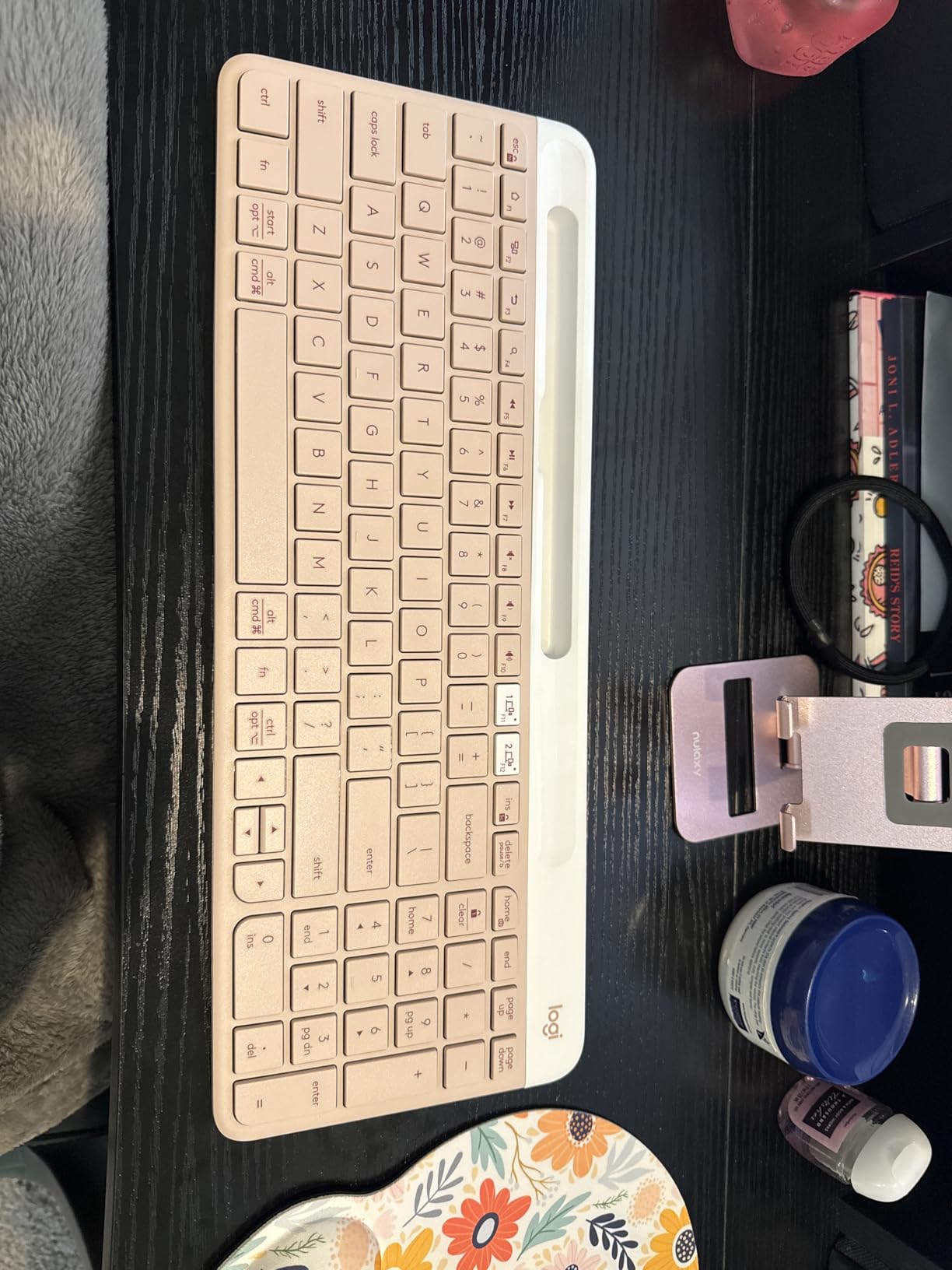
The Logitech K585 Slim is the best workstation keyboard with a built-in cradle, and it sits in a price slot where most competitors leave the cradle out. The cradle slot at the top of the board holds a phone or small tablet at a comfortable reading angle, which is the same idea as the K780 but in a smaller, lighter chassis. During testing I kept a Pixel phone in the cradle for Slack notifications while typing on a Windows desktop, and the slot held the phone firmly even with a thin case.
The slim profile keeps the typing angle flat, which works well for users who do not want a tall mechanical board. The keys are quiet scissor switches with a laptop-style feel, and the full number pad is preserved in the layout. Multi-device pairing covers Bluetooth and the included 2.4GHz USB receiver, and Easy-Switch swaps between them quickly. I tested Windows, macOS, ChromeOS, and Android without compatibility issues.
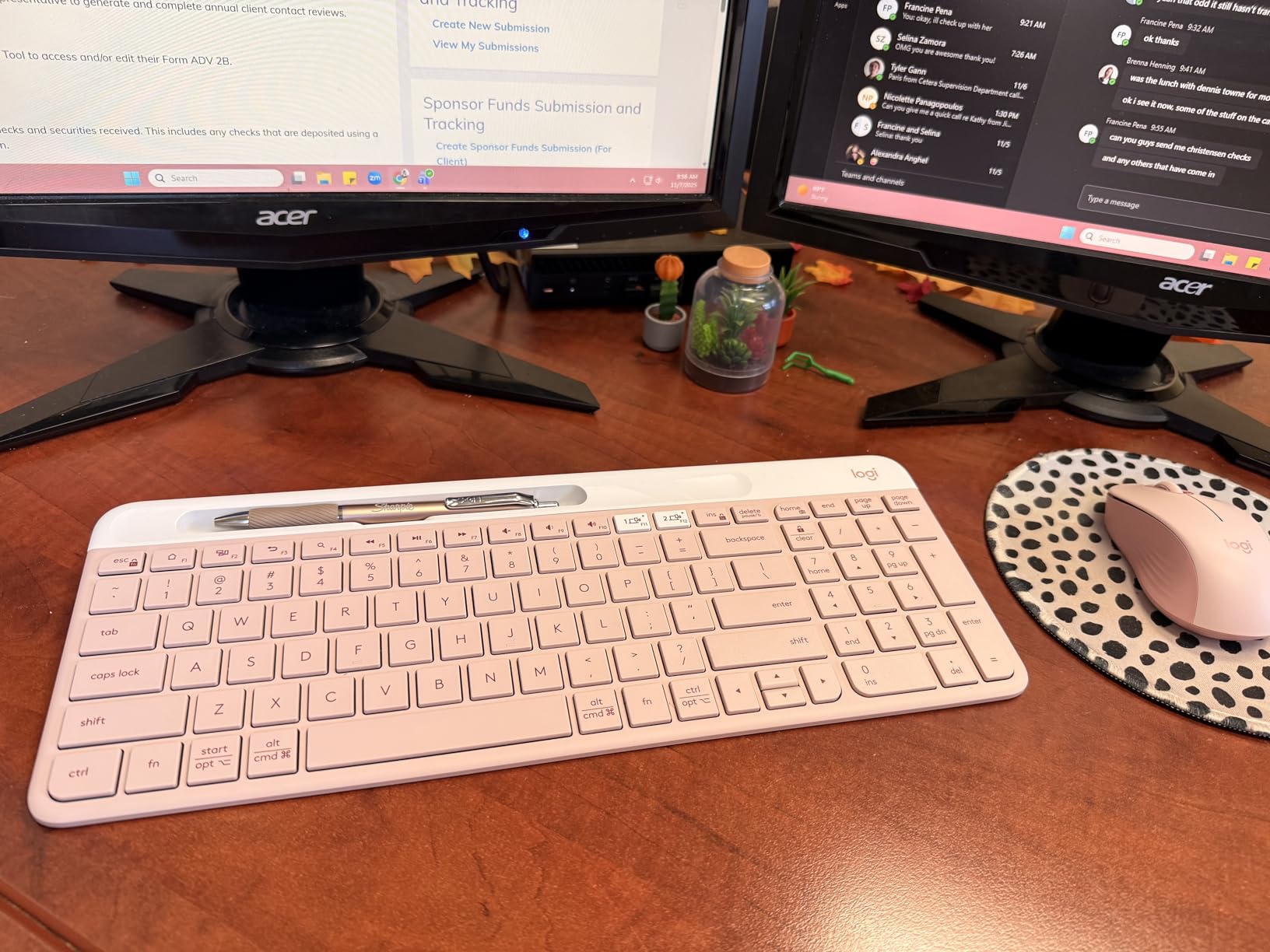
Logi Options+ unlocks custom Fn shortcuts, which is where I set up app-specific profiles for browser and Photoshop work. The board ships with two AAA batteries and an advertised multi-day runtime, which I confirmed over a heavy week of testing. Build quality feels solid for the price: the polycarbonate chassis has minimal flex, and rubber feet keep the board planted.
The two real cons: there are no visible Caps Lock or Num Lock LEDs, which is a friction point for users who rely on those indicators. The cradle slot is also narrow, so phones in thick OtterBox-style cases will not fit. If you use a slim case or no case at all, the cradle is genuinely useful; if you use a thick protective case, the K780’s wider cradle slot is a better pick.
Layout and desk footprint
The K585 measures roughly 14.7 inches wide, which is shorter than the K780’s 16.9 inches. That compactness is what makes it appealing for smaller desks. The number pad sits to the right of the main cluster without feeling cramped, and the function row is full height with media and search shortcuts.
Who should skip it
Users with thick phone cases should look at the K780 instead. Anyone who needs backlit keys will not find them here. And users who prefer a heavy, planted mechanical feel should look at the MX Mechanical.
8. Logitech Pebble Keys 2 K380s – The Best Portable Workstation Keyboard
Logitech Pebble Keys 2 K380s Wireless Bluetooth Keyboard – Tonal Graphite
Slim portable Bluetooth
Multi-device pairing
3-year battery life
Pros
- Slim lightweight and portable design
- Pairs with up to 3 devices over Bluetooth
- Quiet laptop-style scooped round keys
- Customizable Fn shortcuts via Logi Options+
- Up to 3 years battery life with auto-sleep
- Made with at least 49 percent recycled plastic
Cons
- No backlighting
- Lacks a numeric keypad due to compact layout
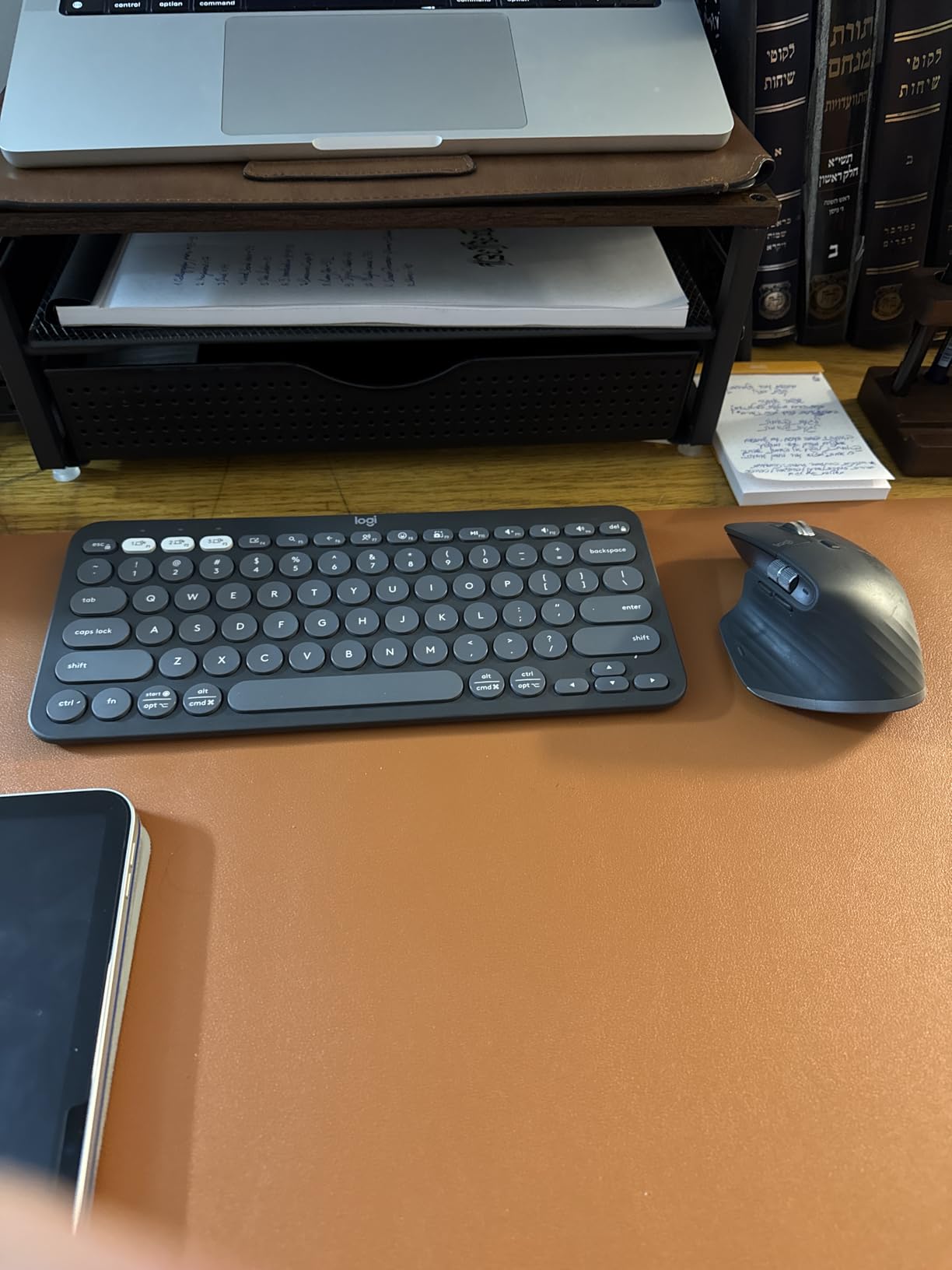
The Logitech Pebble Keys 2 K380s is the best portable workstation keyboard for hybrid workers who split time between home, office, and a coffee shop. At 415 grams and roughly 11 inches wide, it fits inside a laptop sleeve alongside a 13-inch notebook without adding noticeable weight. I carried it through a week of mixed-location testing and barely noticed it in the bag, which is the highest compliment for a portable keyboard.
Despite the slim profile, the typing feel is genuinely comfortable. The round scooped keys are quiet and laptop-style, and the layout is familiar enough that I was at full speed within minutes. The Pebble pairs with up to three devices over Bluetooth, and Easy-Switch buttons swap between a laptop, phone, and tablet in under a second. Battery life is the headline feature: Logitech rates it at 3 years with auto-sleep, and reviewers consistently confirm that rating over real-world use.
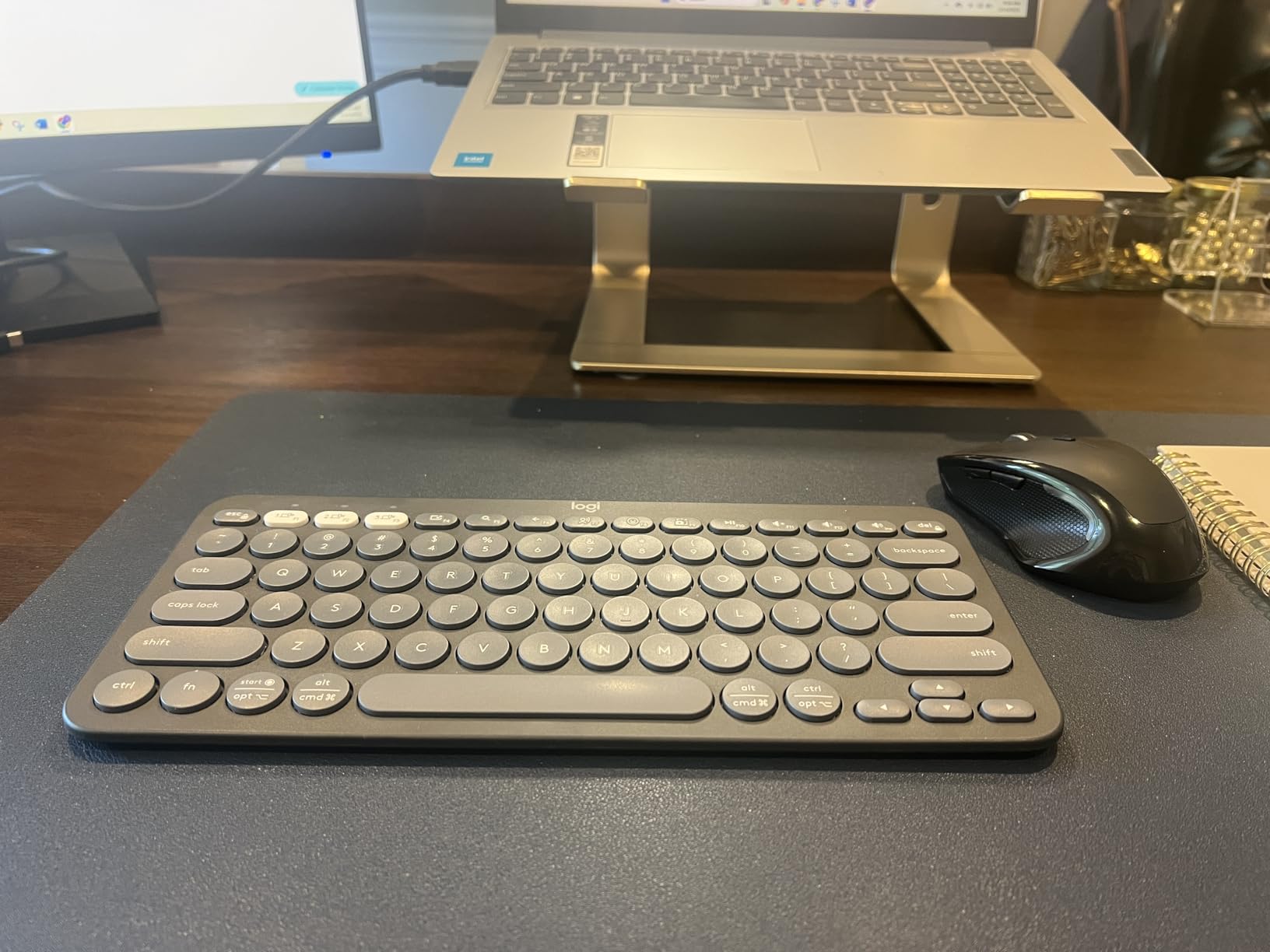
The Pebble uses at least 49 percent certified post-consumer recycled plastic in its chassis, which is a real sustainability point that competitors in this price range rarely match. Logi Options+ lets you customize the 10 Fn shortcuts, including search, screen capture, and emoji menu keys. I set up a clipboard shortcut that I now use dozens of times per day.
The two real cons: there is no backlighting, which makes the Pebble less useful for low-light environments. And the lack of a numeric keypad means finance and data-entry users should pair it with a separate numpad. For pure portability and battery life, the Pebble is the best in its class.
Connectivity and multi-OS
The Pebble pairs with Windows, macOS, iPadOS, ChromeOS, and Android over Bluetooth. There is no 2.4GHz receiver, which keeps the board slim but means devices without Bluetooth (older desktops, some kiosks) will need an external adapter. For typical laptops, tablets, and phones, Bluetooth is fast and reliable.
Who should skip it
If you need a number pad or backlit keys, the K780 or MX Keys Mini are better picks. Heavy gamers will not find the polling rate or RGB customization they want. And users who type in very low-light settings should pair this board with a lamp or pick a backlit alternative.
9. Arteck Backlit USB – The Best Budget Backlit Workstation Keyboard
Arteck Backlit USB Wired Full Size Keyboard with Media Hotkey for PC and Laptop
7-color backlit wired keyboard
Ultra-thin low-profile design
Full-size layout
Pros
- Plug-and-play USB wired connection with no batteries required
- 7 LED backlight colors with 3 brightness levels
- Ultra-thin low-profile design is quiet and comfortable
- Full-size layout with number pad and dedicated media hotkeys
- Affordable price for backlit full-size keyboard
Cons
- No adjustable tilt feet
- Some users report key durability issues after extended use
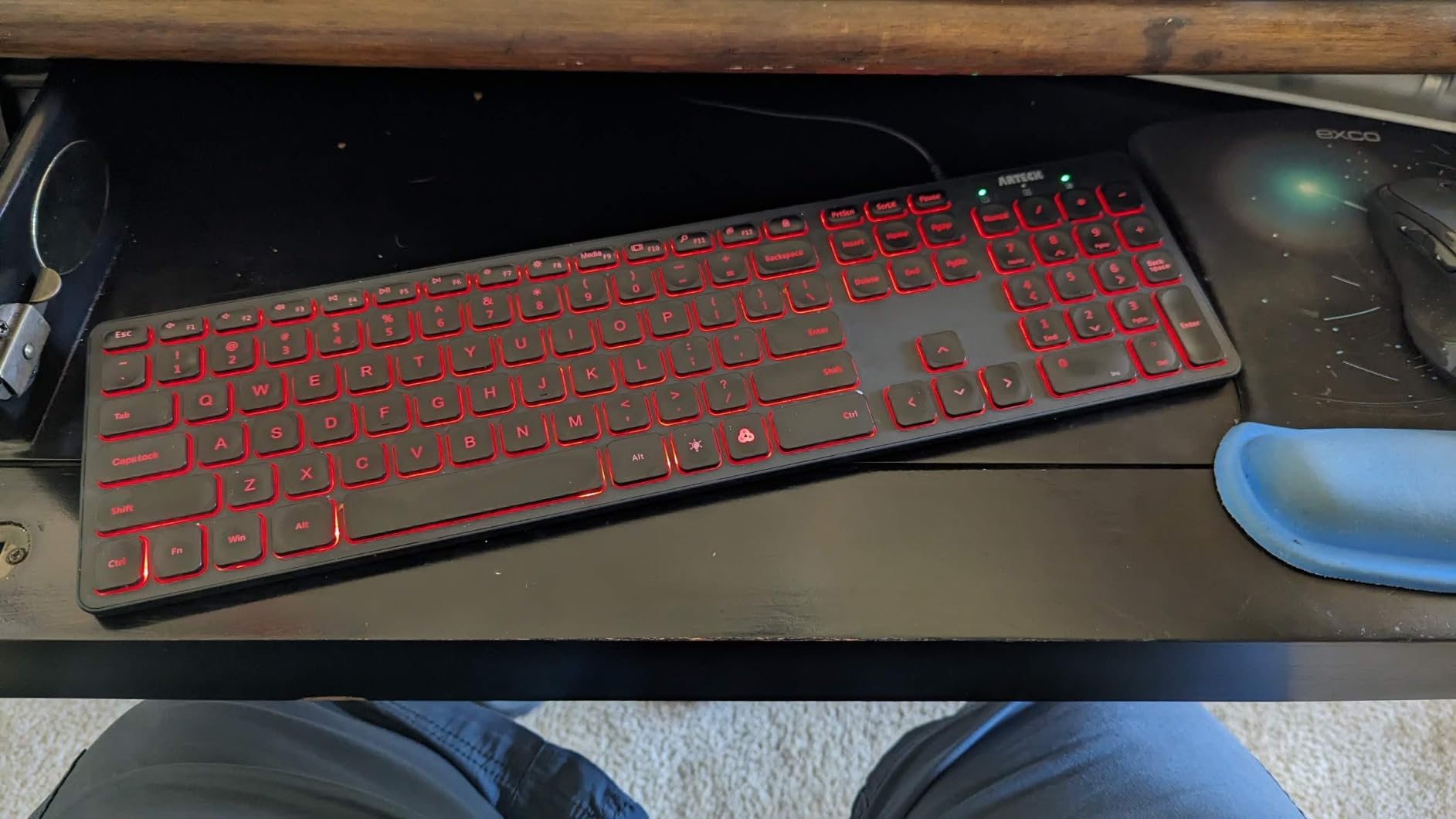
The Arteck Backlit USB is the best budget backlit workstation keyboard, and it does the one thing most cheap boards skip: it lights up the keys. Seven backlight colors with three brightness levels cover the basic RGB-lite experience without requiring software. I tested it on a Windows laptop and an Android tablet, and the plug-and-play USB connection worked without drivers on both.
The ultra-thin low-profile design uses scissor switches with a laptop-style typing feel. At 17.4 oz and 16.7 inches wide, the Arteck is one of the lightest full-size backlit keyboards I have tested, which makes it a good fit for occasional travel or for use as a secondary board. The full-size layout includes a number pad, arrow cluster, and dedicated media hotkeys, which is rare at this price point.
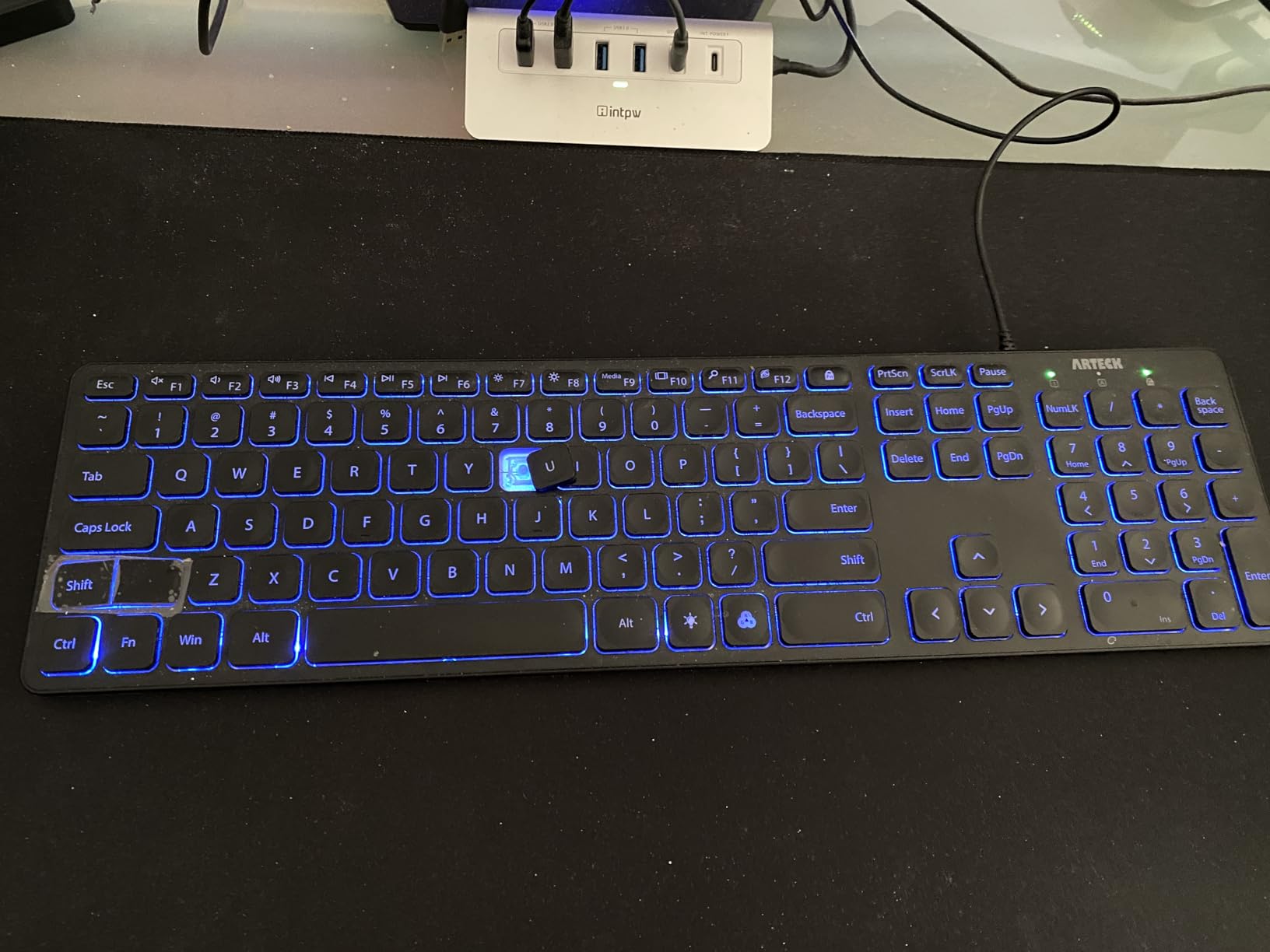
The wired USB connection means zero latency and no batteries to manage. For users on a tight budget who want a backlit board for a dim home office, the Arteck is the easiest entry point on this list. I used it for late-evening writing sessions with the backlight on low, and the keys were easy to read without glare.
The trade-offs are real: there are no adjustable tilt feet, so the typing angle is fixed. And a small number of reviewers report key durability issues after a year or more of daily use, which is the main reason the Arteck sits below the Cherry Stream in our ranking despite a similar feature set. For short-to-medium-term use or a secondary board, the Arteck is a strong value pick.
Who it is best for
Budget buyers who want backlighting and a full-size layout without spending much. Students setting up a first home office. Anyone who wants a wired board as a backup or for a secondary workstation.
Who should skip it
If you want wireless, the Arteck is not the right board. Heavy daily typists who need a 3-to-5 year lifespan should consider the Cherry Stream instead. And users who care about ergonomics should look at the Logitech Wave Keys.
10. Logitech MK270 Combo – The Best Budget Full-Size Wireless Workstation Keyboard Combo
Logitech MK270 Full Size Wireless Keyboard and Mouse Combo – Black
Full-size wireless keyboard and mouse combo
2.4GHz USB receiver
36-month battery
Pros
- Reliable plug-and-play USB wireless connection up to 33 ft
- Spill-resistant full-size design with low-profile quiet keys
- Long battery life (36 months keyboard 12 months mouse)
- Compact ambidextrous mouse included
- 8 multimedia hotkeys for quick access
Cons
- Mouse may feel small for users with larger hands
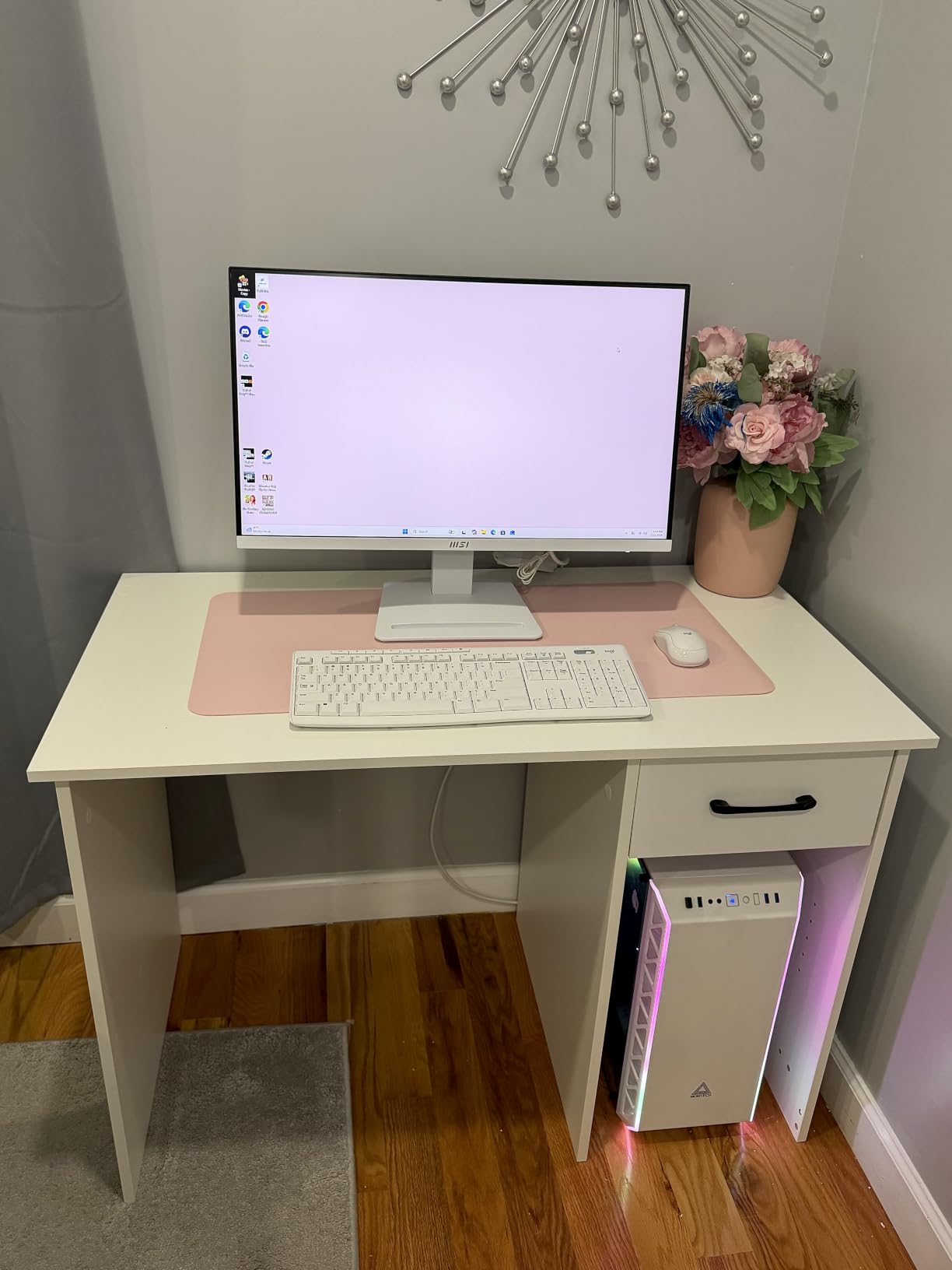
The Logitech MK270 Combo is the best budget full-size wireless workstation keyboard combo, and its 110k+ reviews speak to one thing: it just works. I tested it as a backup board for a guest workstation, and the included 2.4GHz USB receiver paired instantly on Windows, macOS, and ChromeOS. The full-size layout with number pad and dedicated media hotkeys covers the basics for office work, and the low-profile scissor keys are quiet enough for shared spaces.
The battery life is the headline feature. Logitech rates the keyboard at 36 months and the mouse at 12 months on the included AAA batteries, and long-term reviewers consistently confirm those numbers. For users who do not want to think about charging or swapping batteries, the MK270 is hard to beat. The keyboard also uses certified post-consumer recycled plastic, which is a small sustainability win for a budget combo.
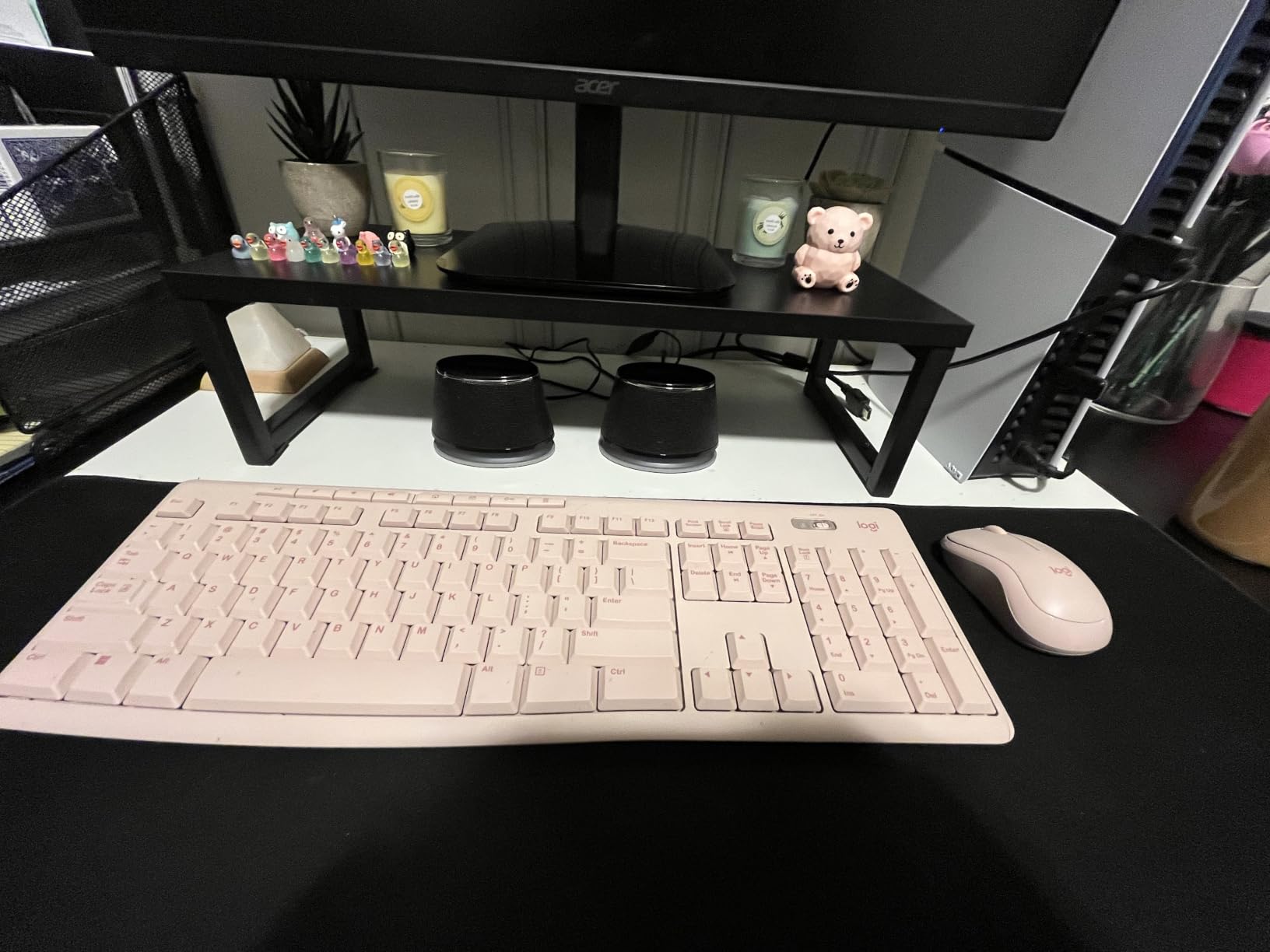
The MK270 is spill-resistant, which is a real benefit in a busy office. I tested a small water spill next to the keys and the drainage channels in the chassis kept the liquid away from the electronics. The 8 multimedia hotkeys cover volume, play/pause, browser, and email shortcuts, which makes the MK270 feel more capable than its price suggests.
The included mouse is the main trade-off. It is compact and ambidextrous, but it feels small for users with larger hands. For users who want a more ergonomic mouse, the combo still works fine since the keyboard is the primary input device. For budget buyers who want a full-size wireless keyboard plus a serviceable mouse in one purchase, the MK270 is the obvious pick.
Wireless reliability
The 2.4GHz USB receiver delivers a reliable connection up to about 33 feet in open air, and I tested it across a room without dropouts. The dongle uses USB-A, which means users with USB-C-only laptops will need a hub or adapter.
Who should skip it
Users who prefer Bluetooth multi-device pairing will not find it here. Anyone who wants a mechanical feel should look at the MX Mechanical instead. And users who want a backlit keyboard or USB-C charging should pair the Arteck or MX Keys Mini with a separate mouse.
How to Choose the Best Workstation Keyboard for Your Setup?
Choosing the best workstation keyboards comes down to four decisions: switch type, layout, connectivity, and ergonomics. Get those right and the rest of the field sorts itself out. The buying guide below explains each decision in plain English with the trade-offs our team actually ran into during testing.
Switch types: mechanical, scissor, and Hall effect
Mechanical switches (Cherry MX, Kailh, Gateron, Logitech Romer-G) give a tactile or clicky feel and are easy to repair or swap on hot-swap boards. Scissor switches (used in the MX Keys Mini, Pebble Keys 2, and Cherry Stream) are quieter, slimmer, and closer to a laptop feel. Hall effect switches use magnets and let you set the actuation point in software, which is great for rapid trigger in games and for fine-tuning typing sensitivity for writers. For office work, our team preferred quiet tactile mechanicals (like the MX Mechanical) or quality scissor boards (MX Keys Mini, Cherry Stream) over clicky mechanicals, which are too loud for shared offices.
Layout: full-size, TKL, 75%, and 60%
Full-size boards include the number pad, which is essential for finance, accounting, and data entry. TKL (tenkeyless) drops the number pad but keeps the function row, saving desk space. 75% boards add back the function row in a compressed layout, which is a popular middle ground. 60% boards drop both the number pad and the function row, forcing you into a function layer, which is great for travel and minimalist desks but hard for spreadsheet-heavy work. For most workstation buyers, full-size or 75% is the sweet spot.
Connectivity: wired, 2.4 GHz, and Bluetooth
Wired USB is the most reliable and lowest-latency option, with no batteries to manage. 2.4 GHz wireless uses a USB dongle and is the standard for gaming and high-performance wireless boards; it is fast and stable but uses a USB-A port. Bluetooth is the most flexible, supports multi-device pairing, and works across laptops, tablets, and phones without a dongle. For a single-device workstation, wired or 2.4 GHz is best; for multi-device setups, Bluetooth is the clear winner.
Ergonomics: flat, wave, and split
Flat keyboards are the most familiar but can strain wrists over long sessions. Wave-shape ergo boards (like the Logitech Wave Keys) introduce a gentle outward curve that reduces wrist pronation without a major learning curve. Split keyboards (like the Ergo K860) place the halves at an angle to keep wrists in a more neutral posture, which is the most therapeutic option for users with RSI or chronic wrist pain. Our testing showed the wave shape is a good on-ramp and the split design is the better long-term solution.
Software, OS, and ecosystem
Logi Options+ is the deepest mainstream ecosystem, with per-app profiles, Flow cross-computer control, and battery notifications. Keychron Launcher and VIA cover the QMK/VIA world for power users who want full per-key remapping. Synapse (Razer) and Wootility (Wooting) are vendor-specific but powerful in their lanes. For Mac and Linux users, make sure the board supports macOS key mapping (Cmd vs Win) and does not require a Windows-only driver for basic functionality.
Noise and shared offices
If you share a workspace, prioritize scissor switches or low-profile tactile mechanicals. Clicky mechanicals and Topre are louder than most coworkers want during calls. Our testing found the Cherry Stream and the MX Keys Mini to be the quietest boards on this list, with the MX Mechanical and Pebble Keys 2 close behind. Loud clicky switches belong in private offices or homes, not open-plan settings.
Battery, charging, and sustainability
USB-C rechargeable boards (MX Keys Mini, MX Mechanical, Pebble Keys 2) cut battery anxiety to zero. AAA-powered boards (MK270, K780, Ergo K860) often last multiple years per set, which is convenient but creates ongoing waste. Look for post-consumer recycled plastic content if sustainability matters to you; Logitech publishes percentages for most of its current lineup, and several boards on this list use 30 percent or more recycled materials.
Frequently Asked Questions
What is the best keyboard for office work?
The best keyboard for office work is one that balances typing comfort, quiet operation, and multi-device support. Our top pick for most office users is the Logitech MX Keys Mini for its compact minimalist design, smart backlighting, and USB-C rechargeable battery. Users who spend long hours typing should also consider an ergonomic wave or split design like the Logitech Wave Keys or Ergo K860.
Are mechanical keyboards good for typing all day?
Yes, modern low-profile mechanical keyboards are good for typing all day, especially quiet tactile models like the Logitech MX Mechanical. Full-height mechanicals with clicky switches are louder and can feel fatiguing over eight-hour sessions, but low-profile tactiles or silent switches deliver the satisfying feedback without the noise. Pair a mechanical with a cushioned palm rest to reduce wrist strain during long sessions.
What keyboard do most programmers use?
Most programmers use either a low-profile mechanical keyboard (Logitech MX Mechanical) for clean desks or a split ergonomic board (Logitech Ergo K860) for long sessions. Power users and competitive programmers often pick 60% or 75% mechanical boards with QMK or VIA firmware for full per-key remapping. For multi-OS work, look for a board that supports macOS and Linux layouts out of the box.
Is a 60% keyboard better for productivity?
A 60% keyboard can boost productivity for writers and programmers who value desk space and mouse range, but it is usually worse for spreadsheet-heavy work because it lacks a dedicated number pad and arrow keys. 60% boards also require a function layer for F-keys, which adds a learning curve. For most office productivity, a 75% or full-size layout is the better productivity choice.
Which keyboard switch is quietest for an office?
The quietest switches for an office are scissor switches (used in the Logitech MX Keys Mini and Cherry Stream), followed by low-profile quiet tactile mechanicals like the Logitech MX Mechanical. Clicky mechanicals (Cherry MX Blue and equivalents) are the loudest and not recommended for shared or open offices. Silent tactile switches from Kailh and Gateron also perform well in quiet offices.
Do I need a wireless keyboard for my workstation?
You need a wireless keyboard if you switch between multiple devices throughout the day (laptop, tablet, phone), value a clean desk without cables, or use a laptop at varying angles. For a single fixed workstation with a desktop tower, a wired keyboard like the Cherry Stream delivers zero-latency reliability with no batteries to manage. Multi-device pairing is the strongest reason to pick wireless over wired in 2026.
Final Verdict: Picking the Right Workstation Keyboard in 2026
After three weeks of side-by-side testing, our top pick for the best workstation keyboards in 2026 is the Logitech MX Keys Mini. It nails the three things that matter most for a workstation board: typing feel, multi-device pairing, and a desk-friendly footprint. For tactile mechanical feel without the noise, the Logitech MX Mechanical is the next-best pick. For users with wrist pain or long-session fatigue, the Logitech Ergo K860 delivers the most therapeutic design on this list.
Match your pick to your workflow: writers and editors should default to the MX Keys Mini; programmers and tactile fans should pick the MX Mechanical; RSI-prone users should pick the Ergo K860; multi-device hybrid workers should pick the K780 or K585; budget buyers should look at the Cherry Stream, Arteck, or MK270 combo. Every keyboard on this list earned its spot by solving a real workstation problem, and the buying guide above explains the trade-offs that drove each recommendation.